


Introduction to the Evaluation Criteria
Evaluation Criteria are functional taxonomy labels in AcceleratorApp used to categorize educational events, trigger subject-specific evaluation scorecards, and structure application reviews. Unlike programs or tags, which group community members or startups, Evaluation Criteria strictly define assessment topics and event categories.
By setting up Evaluation Criteria, administrators can standardize the subjects startups and applicants are evaluated on, ensuring evaluators, mentors, and coaches provide targeted feedback aligned with program goals.
Note: Configuring Evaluation Criteria and Evaluation Parameters requires Administrator privileges.
Where to Find Evaluation Criteria
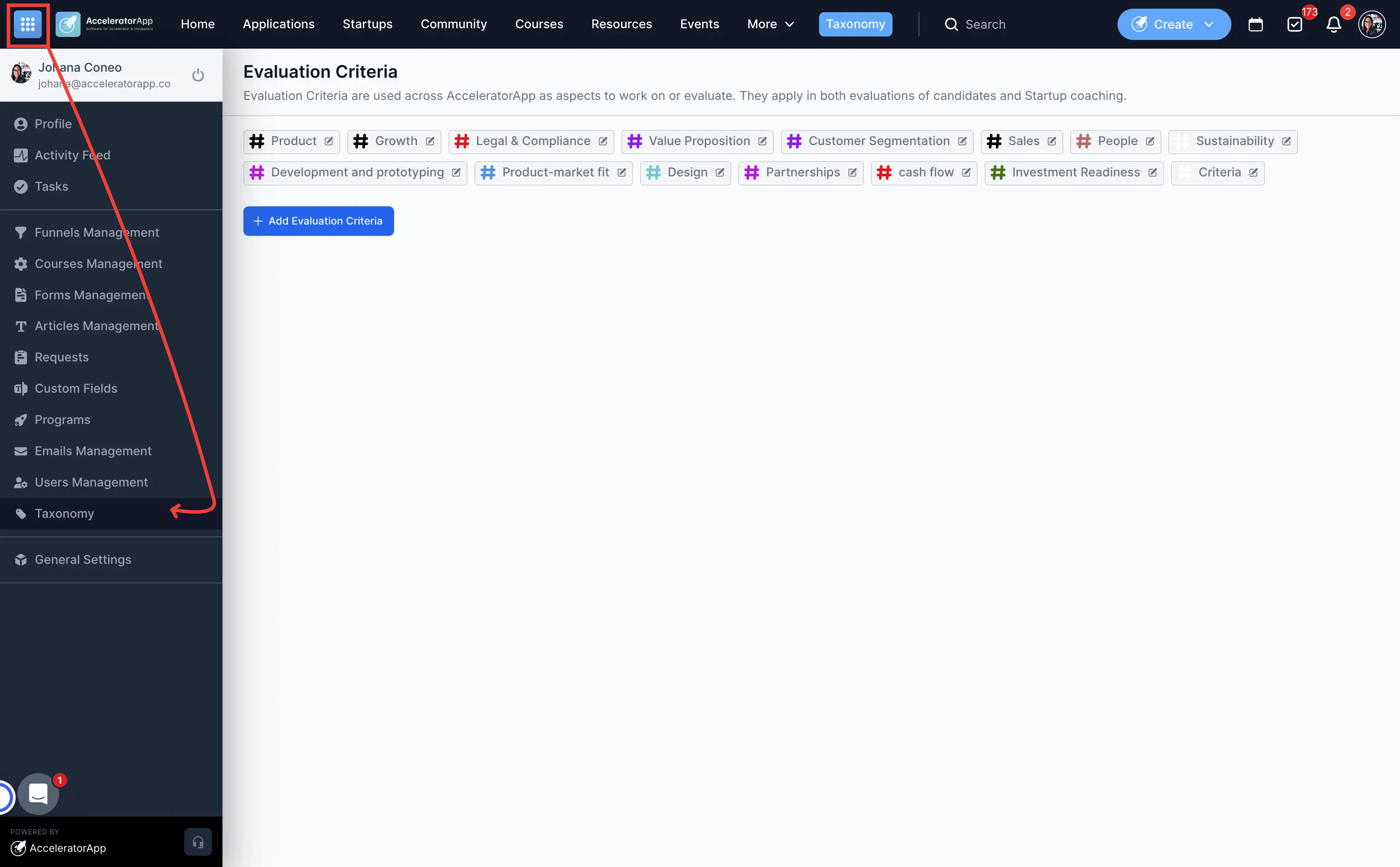
Open the sidebar menu in the top left corner, then select Taxonomy from the menu options.
Step-by-Step
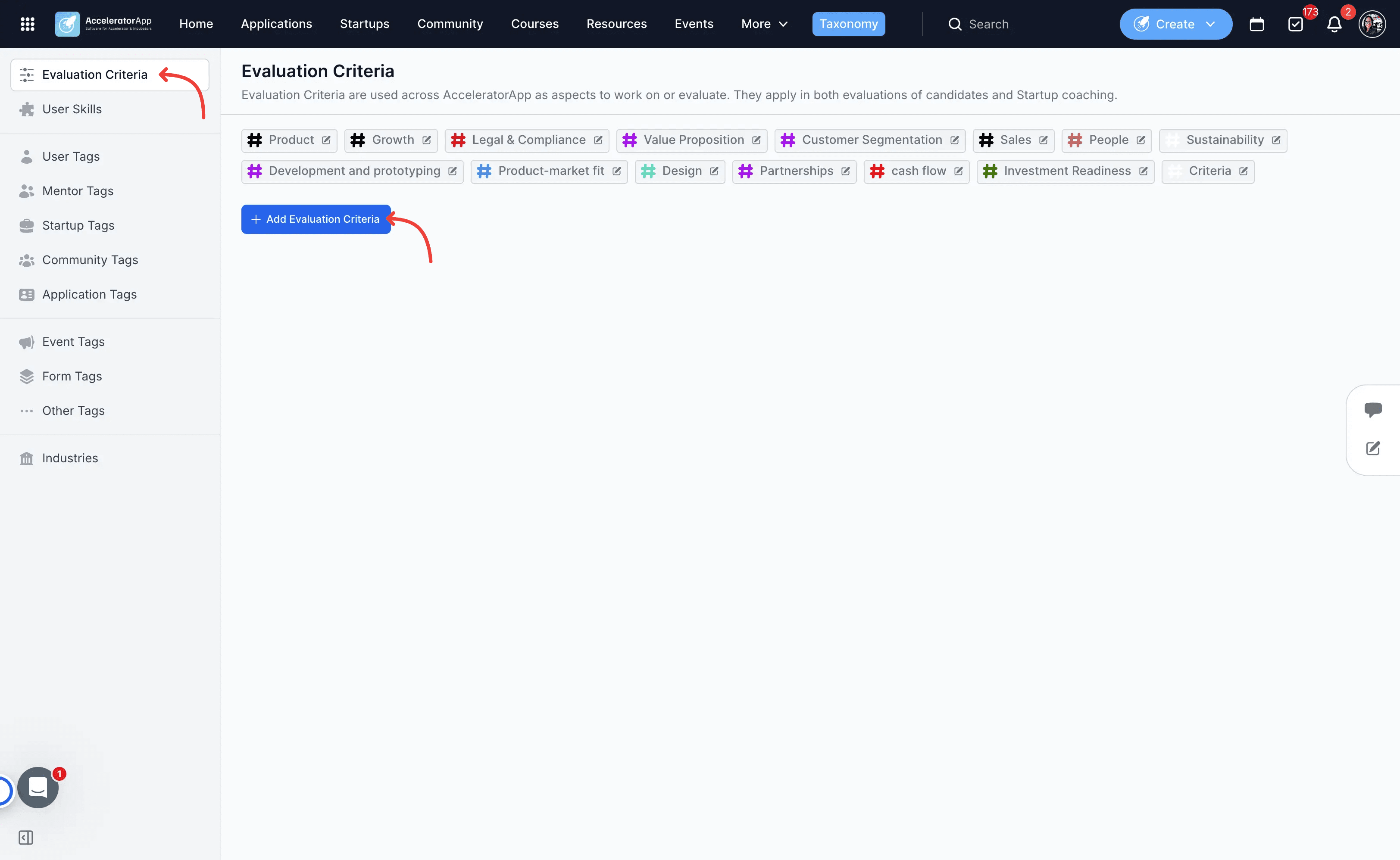
1. Define your Evaluation Criteria in Taxonomy
Navigate to Setup > Taxonomy and add all the subjects or criteria (such as Financial Modeling, Pitching, or Product Strategy) you want startups or applicants to be evaluated on or to associate with events.
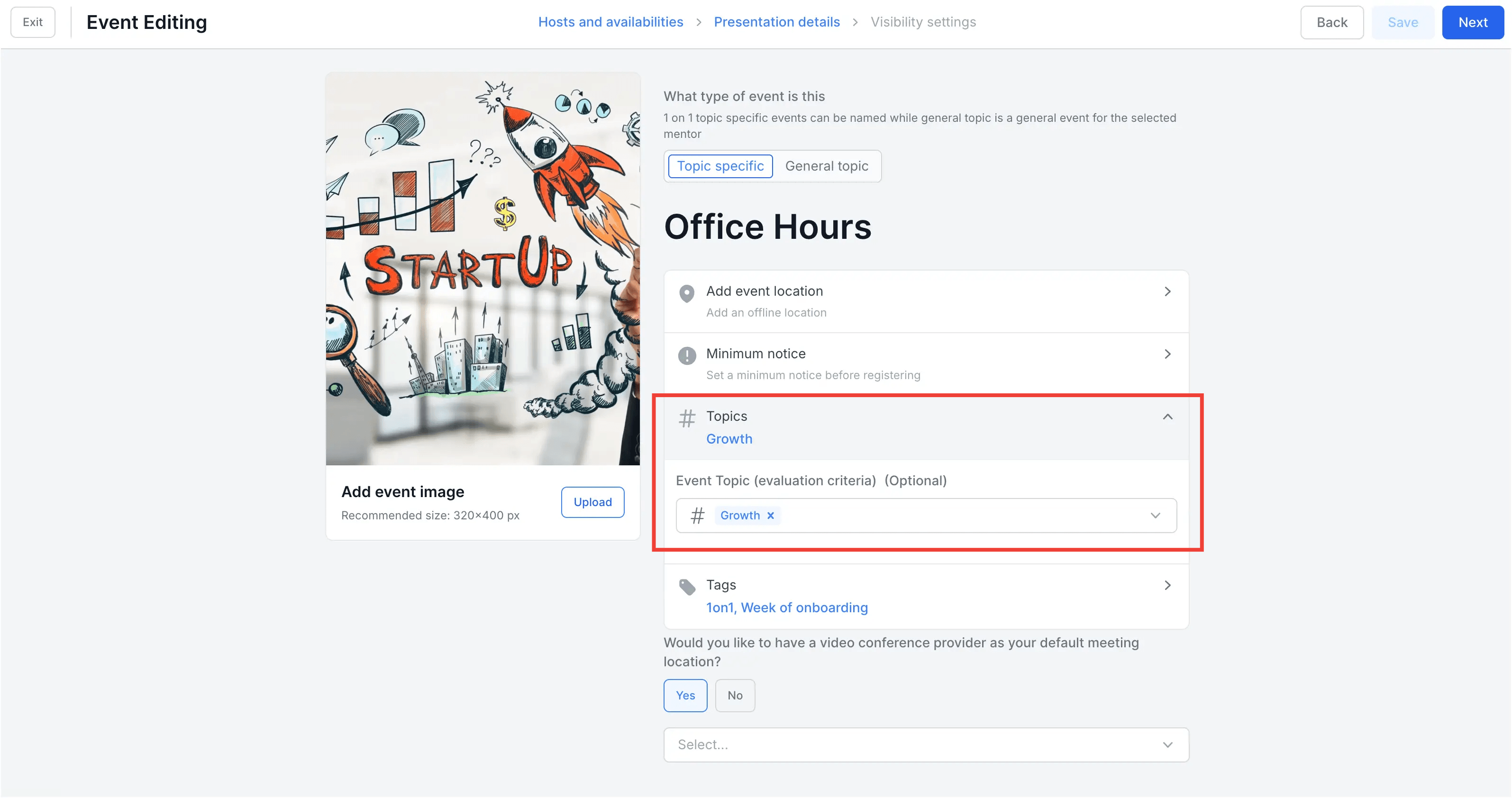
2. Assign Evaluation Criteria to events
When creating or editing an event, navigate to the Event Topic drop-down field and select the relevant Evaluation Criteria to tag the event.
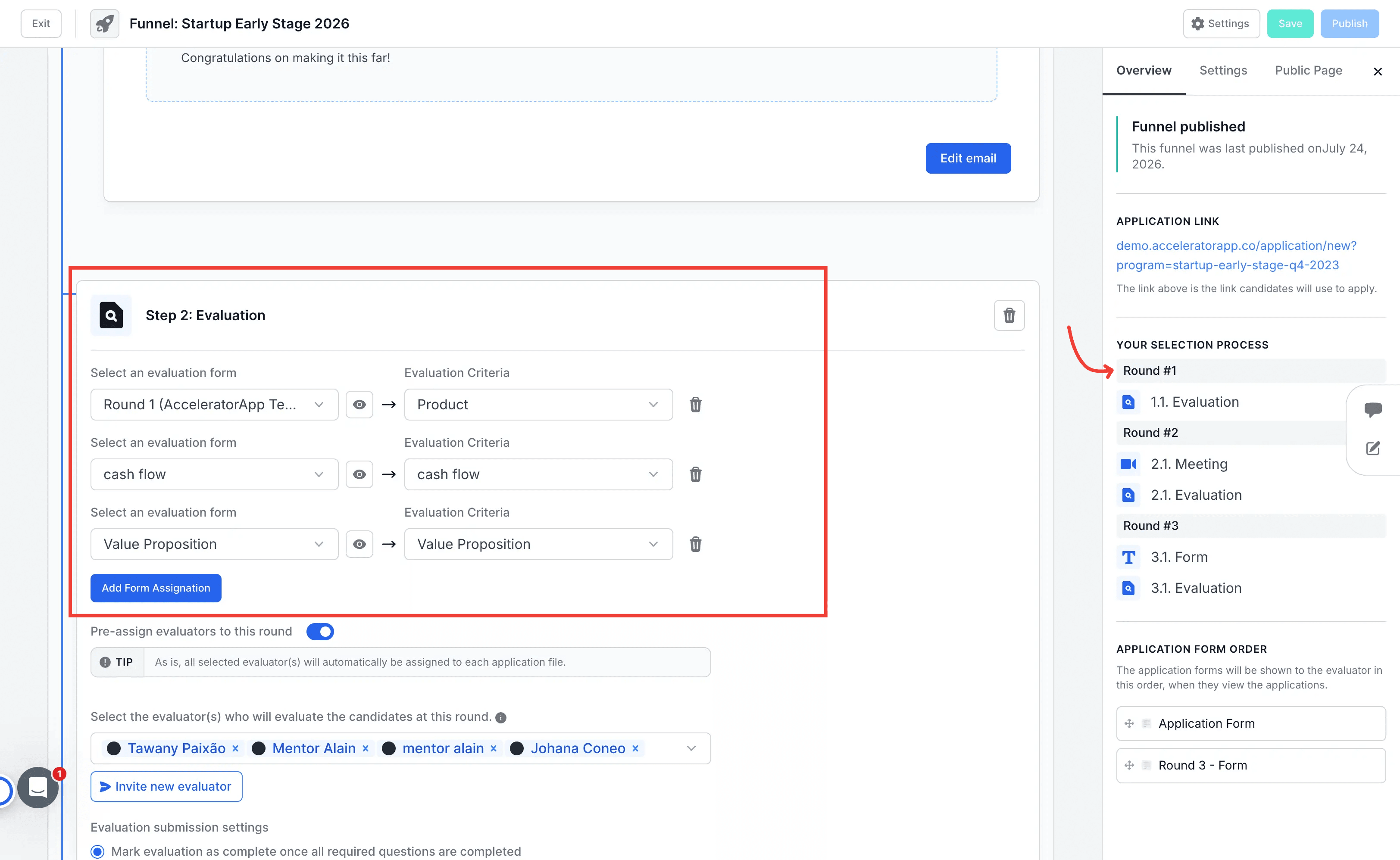
3. Integrate Evaluation Criteria into the Application Evaluation Process
Navigate to Application Process funnel, navigate to the evaluation selection round and attach the relevant Evaluation Criteria to your evaluation forms or scorecard parameters for applicant scoring.
4. Add a new Evaluation Parameter in Coaching Sessions
a. Create an evaluation form template
Navigate to Forms Settings, create a new Evaluation Form, and add the fields required to evaluate startups or applicants on your chosen subject.
b. Open Evaluation Parameters in Coaching Settings
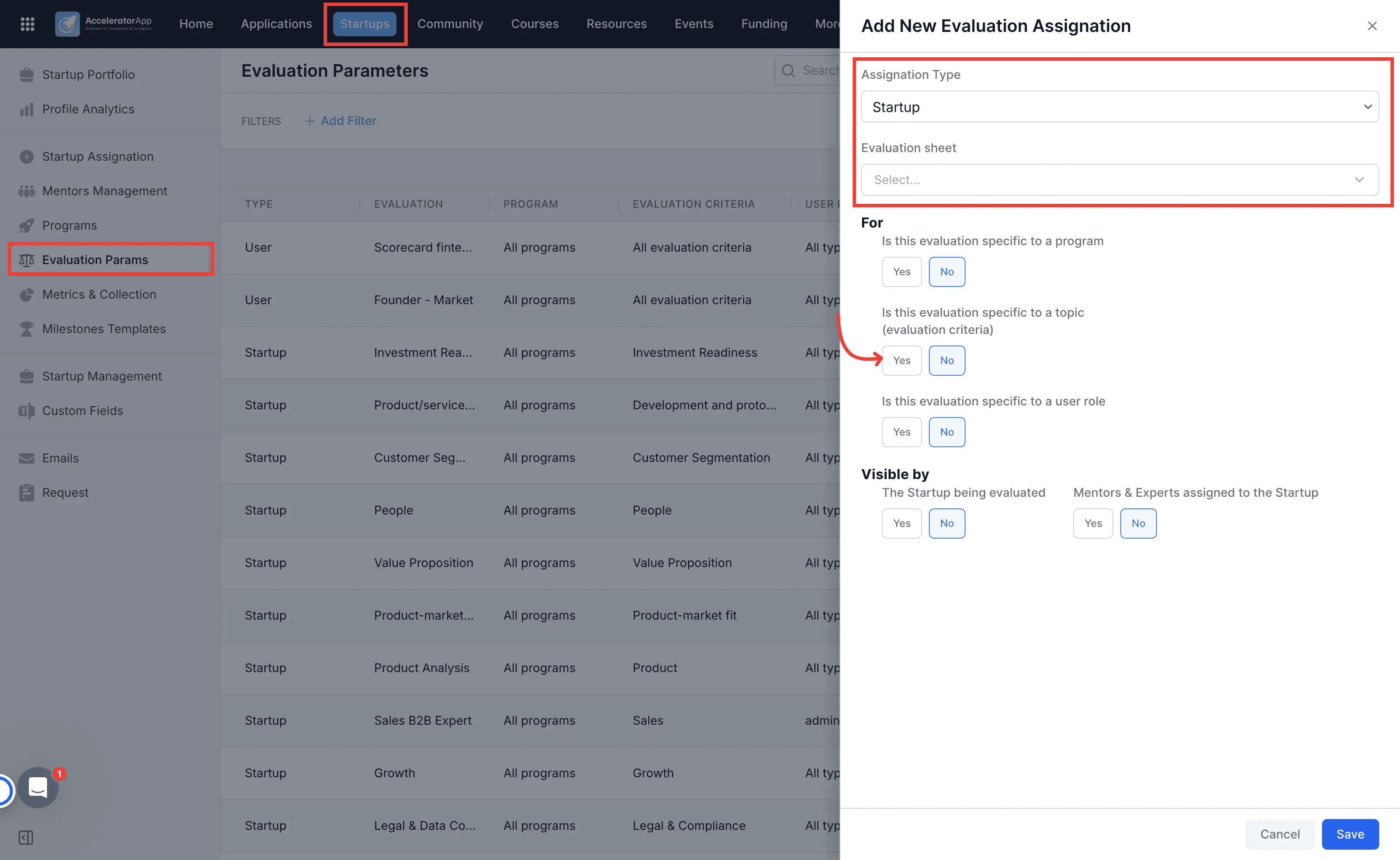
Navigate to Admin Panel > Programs/Coaching Settings, then click on the Evaluation Parameters tab.
c. Set user target and configure subject specificity
Select the target user group to be evaluated, then locate Is this form specific to a subject and choose Yes.
d. Link the form to an Evaluation Criteria
Select the specific subject from the drop-down menu that appears, linking your form to the criteria created in step 1, and save your settings.
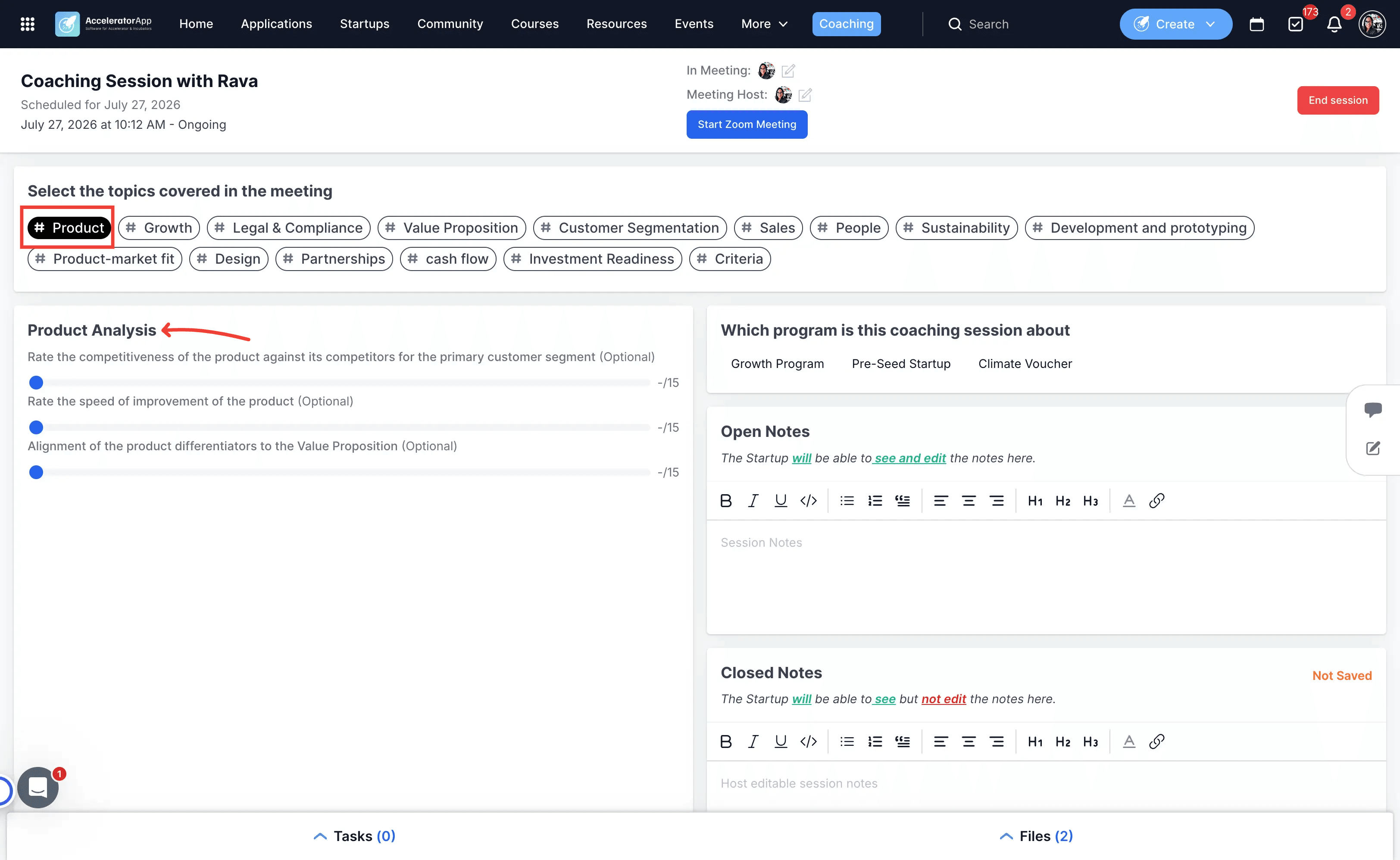
9. Apply subject-specific scorecards during coaching sessions
During an active Coaching or Mentoring session, go to the section above the notes titled Select the Evaluation Criteria covered in the meeting and select the applicable criteria to auto-attach the associated evaluation form.
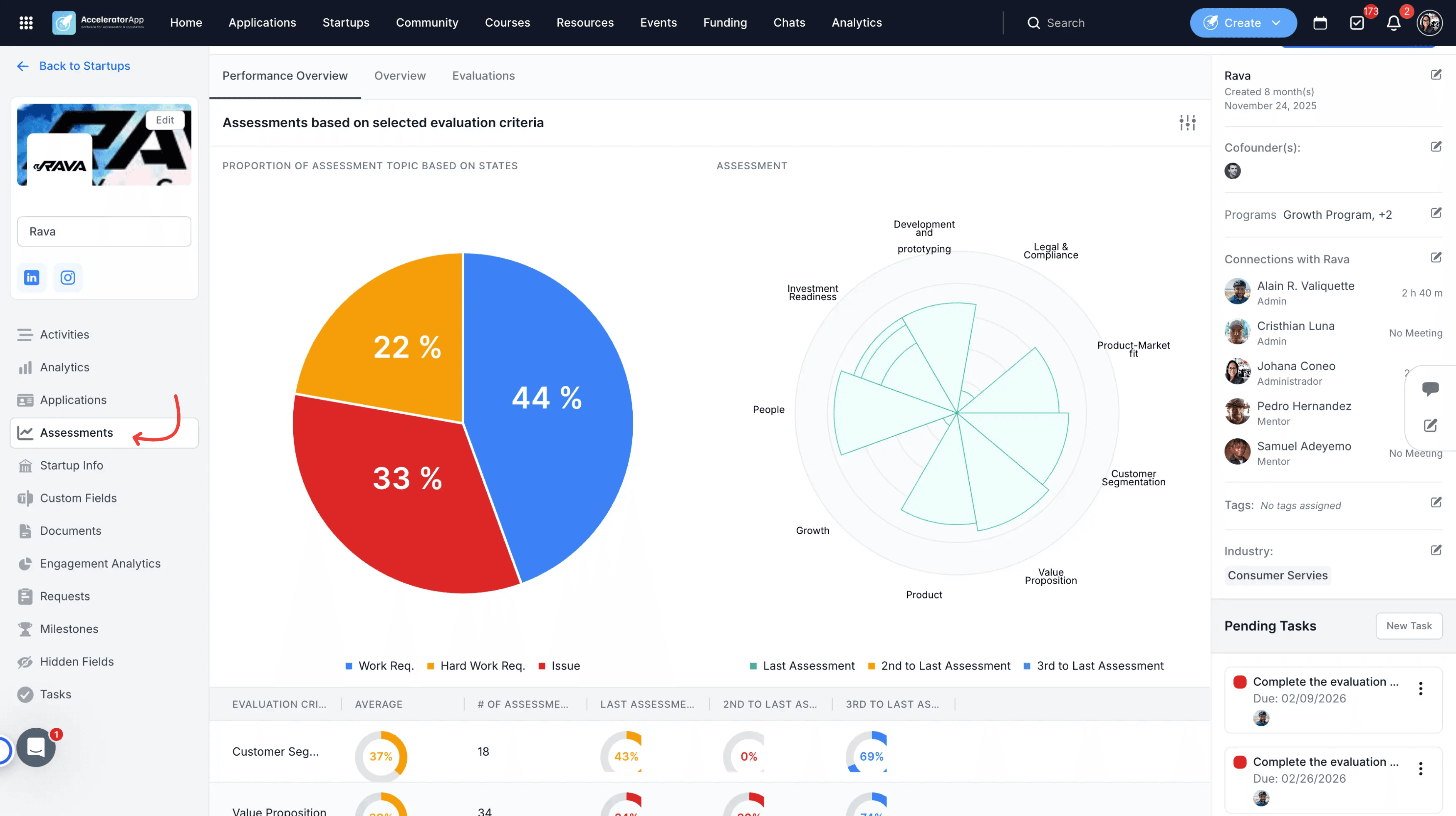
10. View overall progress in Startup Assessment
Navigate to the target startup file and select the Assessment tab to analyze aggregate performance scores gathered from application reviews and coaching scorecards.
Best Practices
Standardize subject naming: Use consistent, clear labels in Taxonomy before creating forms so that evaluators and mentors can easily identify the correct subject across application intake and coaching.
Keep evaluation forms concise: Keep evaluation forms focused on key metrics to maximize completion rates for both application reviewers and active program mentors.
Tag all events: Consistently tag events with Evaluation Criteria so users can efficiently locate relevant sessions using the Search Events filter on the Events Calendar page.