


Introduction to Custom Fields
Custom Fields are reusable questions that can be used to collect and display information in AcceleratorApp. Administrators can create Custom Fields to customize the information displayed in startup profiles, user profiles, and forms. These are referred to as Object Types.
Each Object Type has its own set of Custom Fields. These fields can also be reused in other object types, and the answers for those fields will be saved so users do not have to answer the same question more than once.
This feature is useful when you want to standardize the information collected across your platform and make profile or form data more consistent.
Where to Find Custom Fields
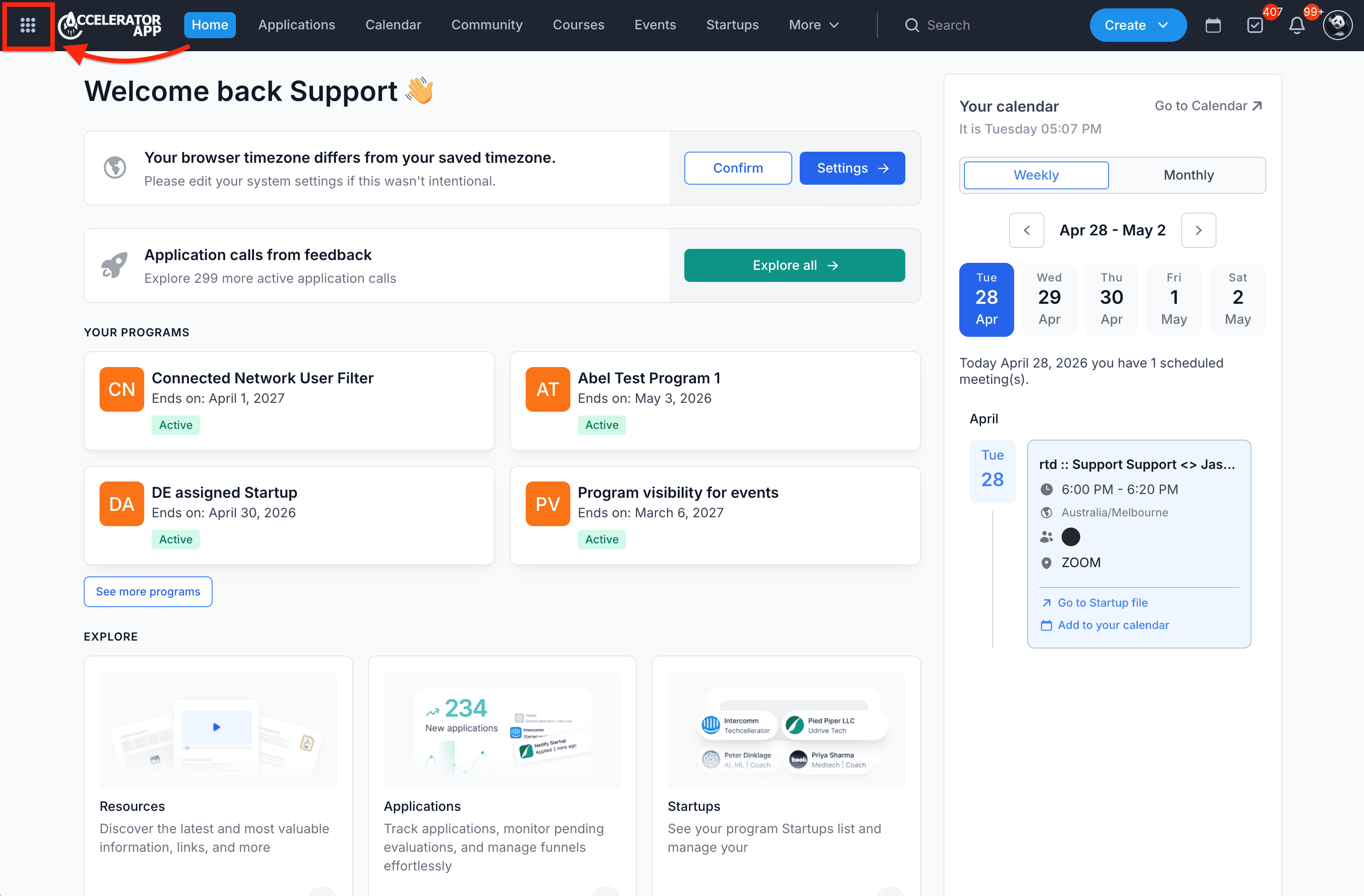
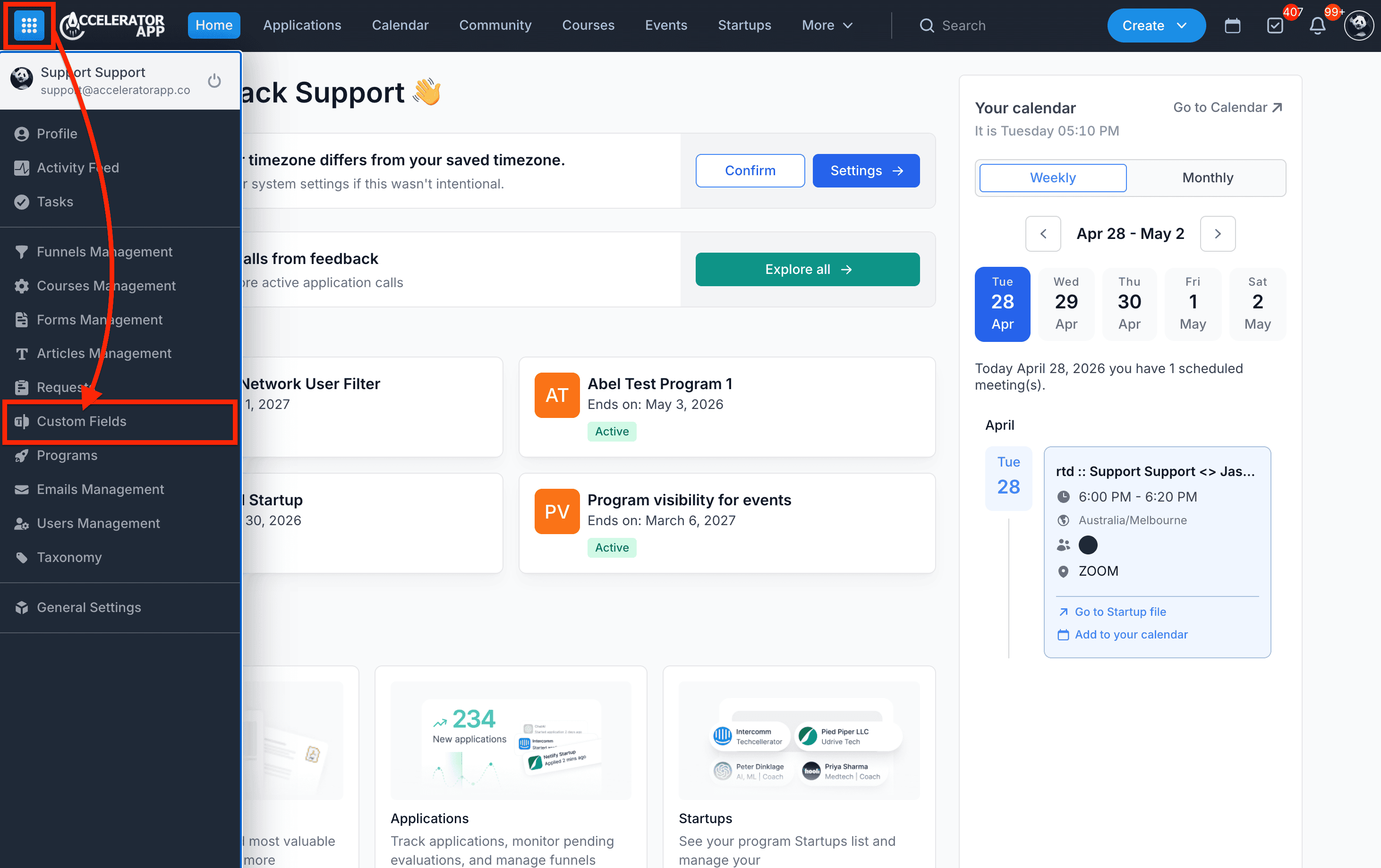
Click on the Menu icon on the top left of the page, this will open the left-side menu. Next, select Custom Fields from the left-side menu.
Step-by-Step
1. Open the menu
Click on the Menu icon on the top left of the page.
2. Open Custom Fields
Click on Custom Fields.
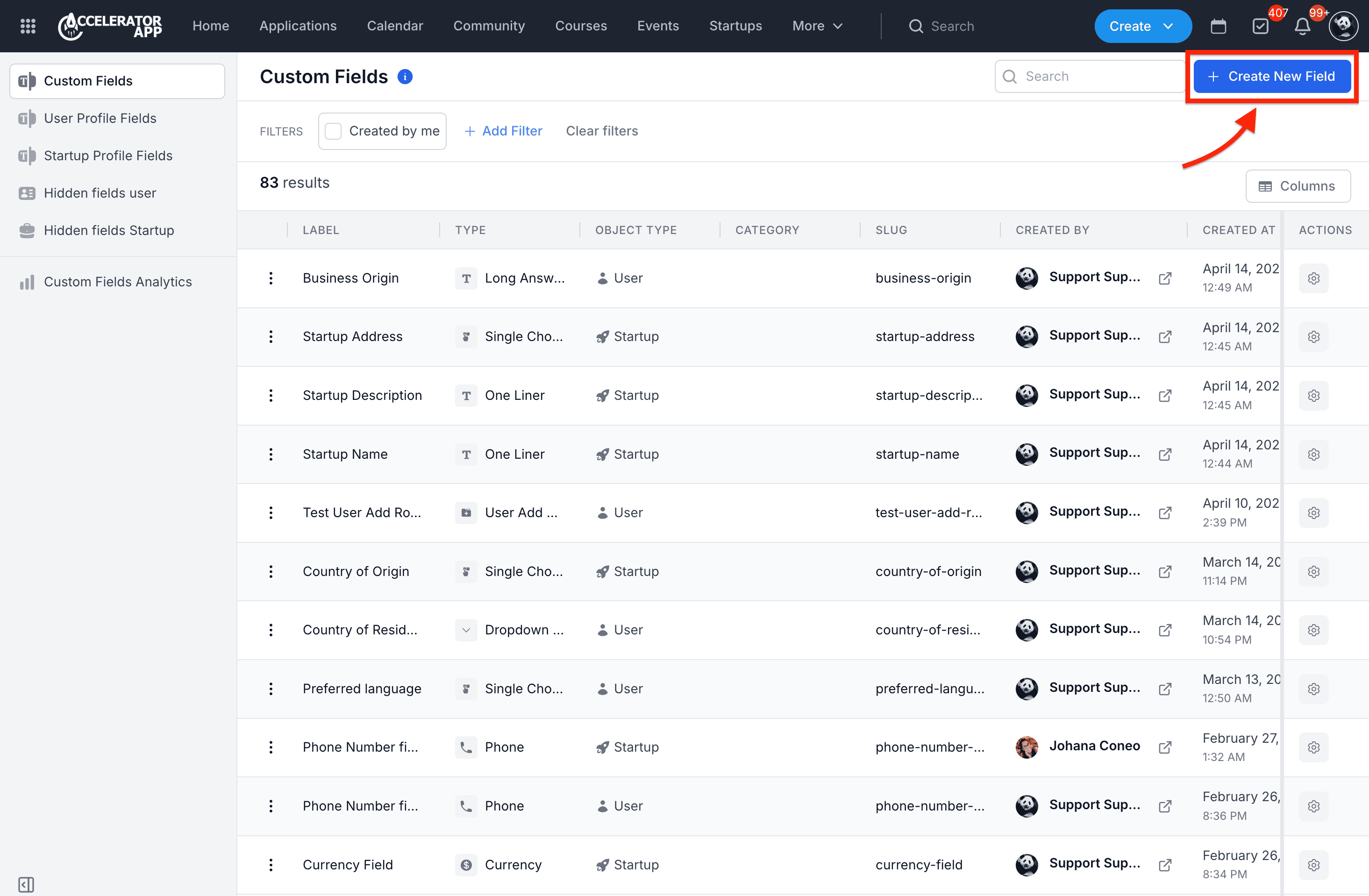
3. Create a new Custom Field
From the Custom Fields page, click the blue + Create New Field button on the top right of the page.
4. Select the Object Type
Select the Object Type such as User, Startup, or Other.
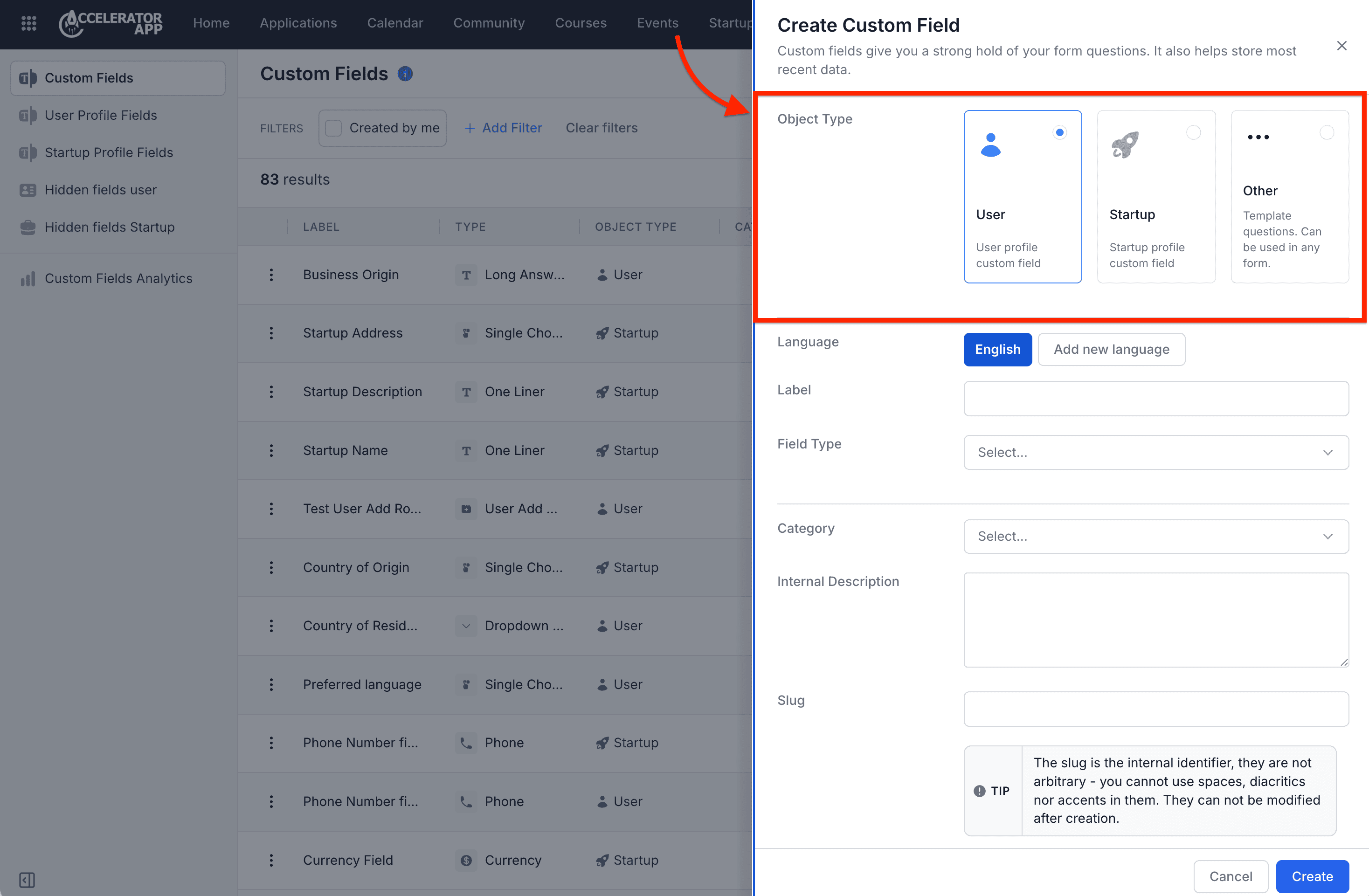
5. Fill in details
Fill in details such as Language, Label and Field Type.
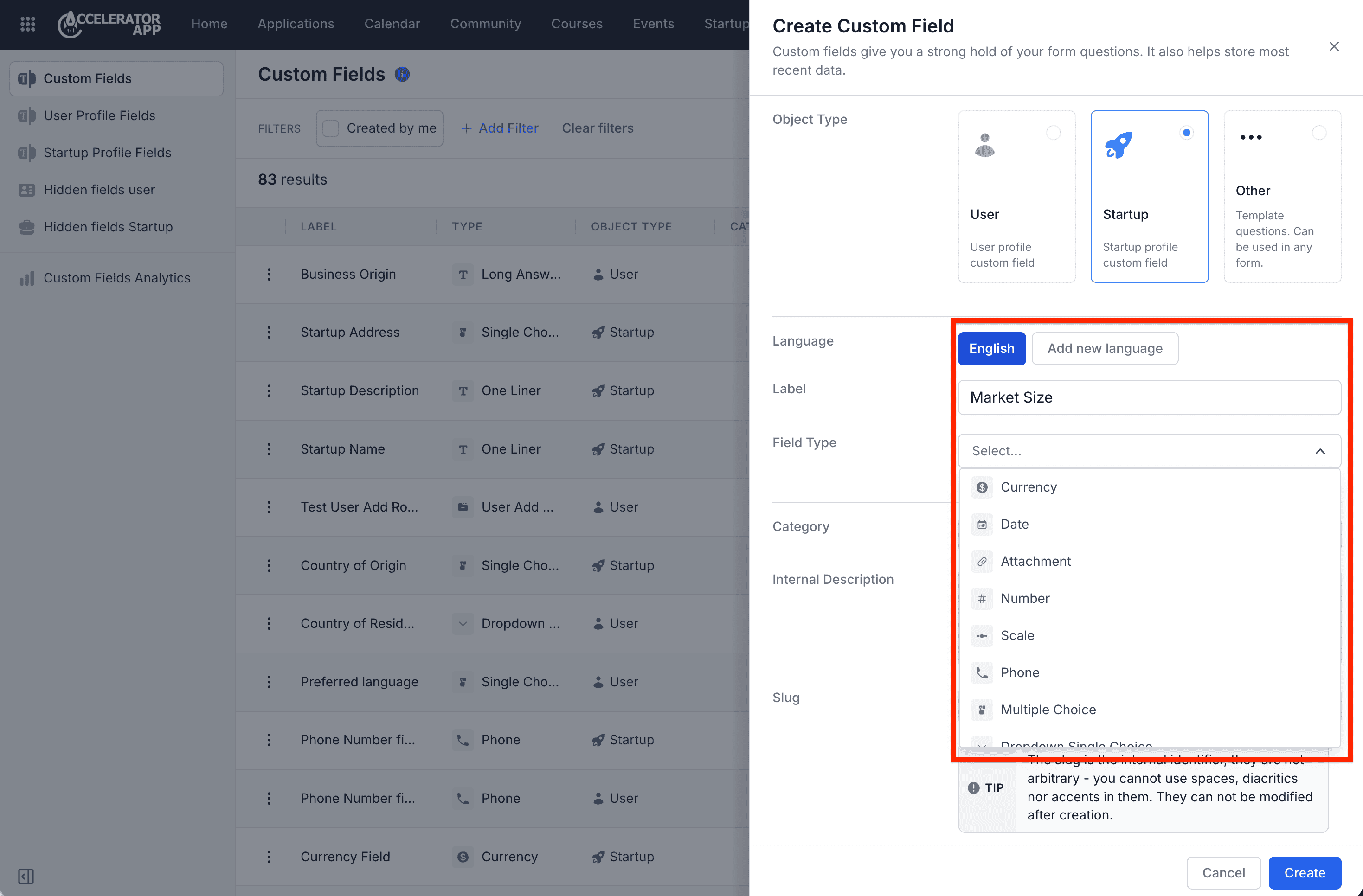
6. Add validations
If you wish to add a validation to your custom field, click on the blue + Add Validation button.
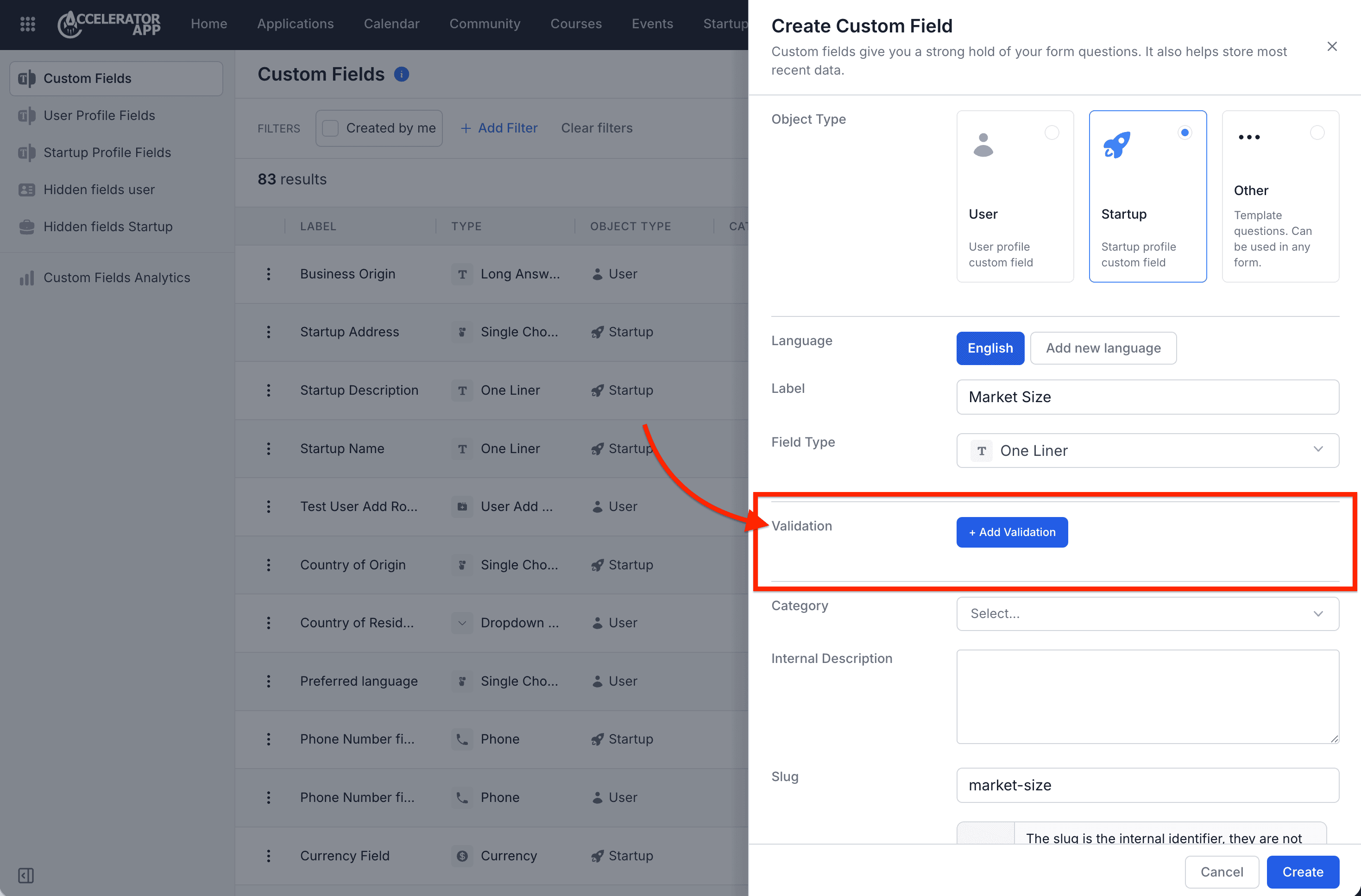
Next, select the validation type from the dropdown and fill in the details.
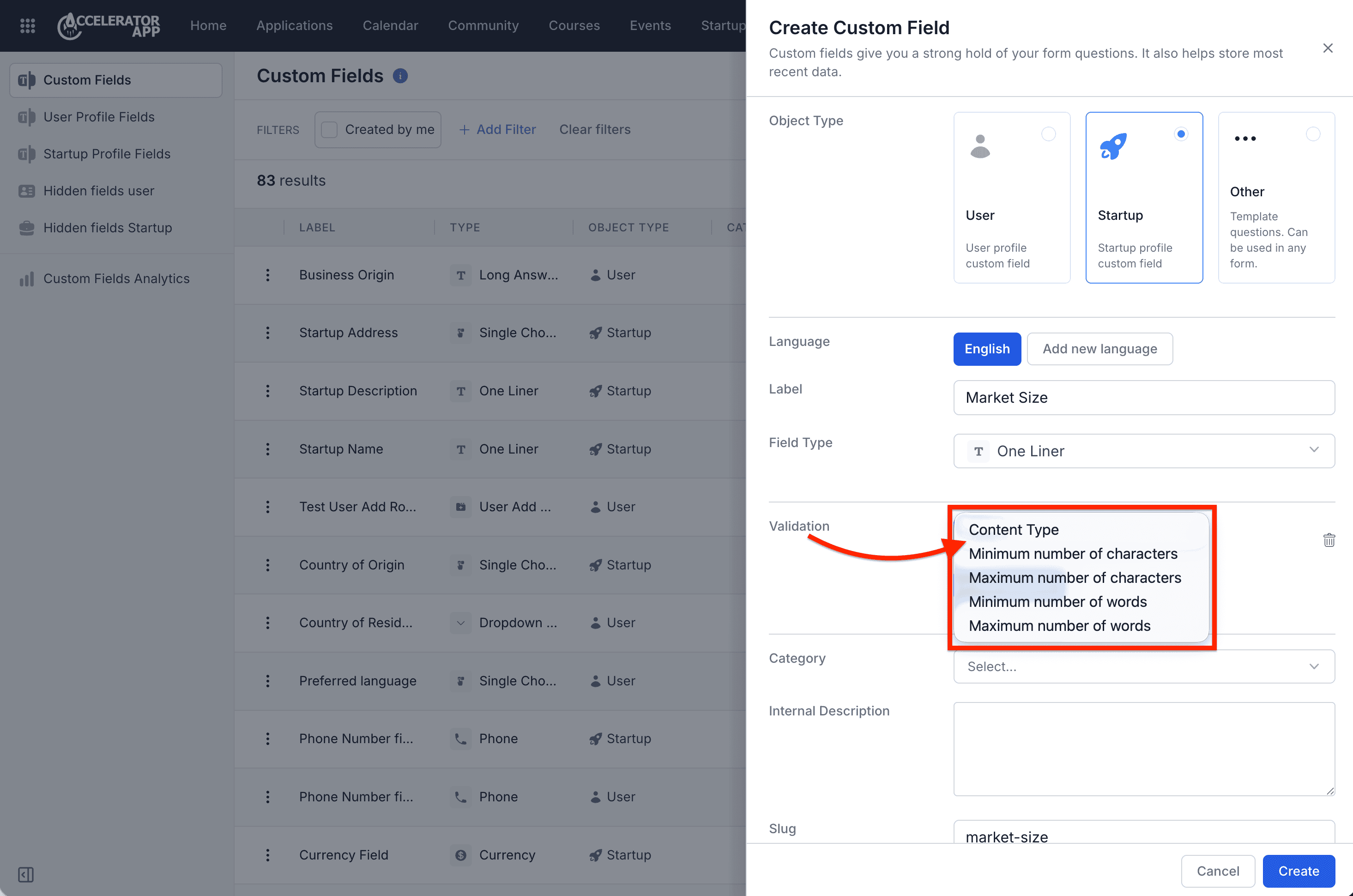
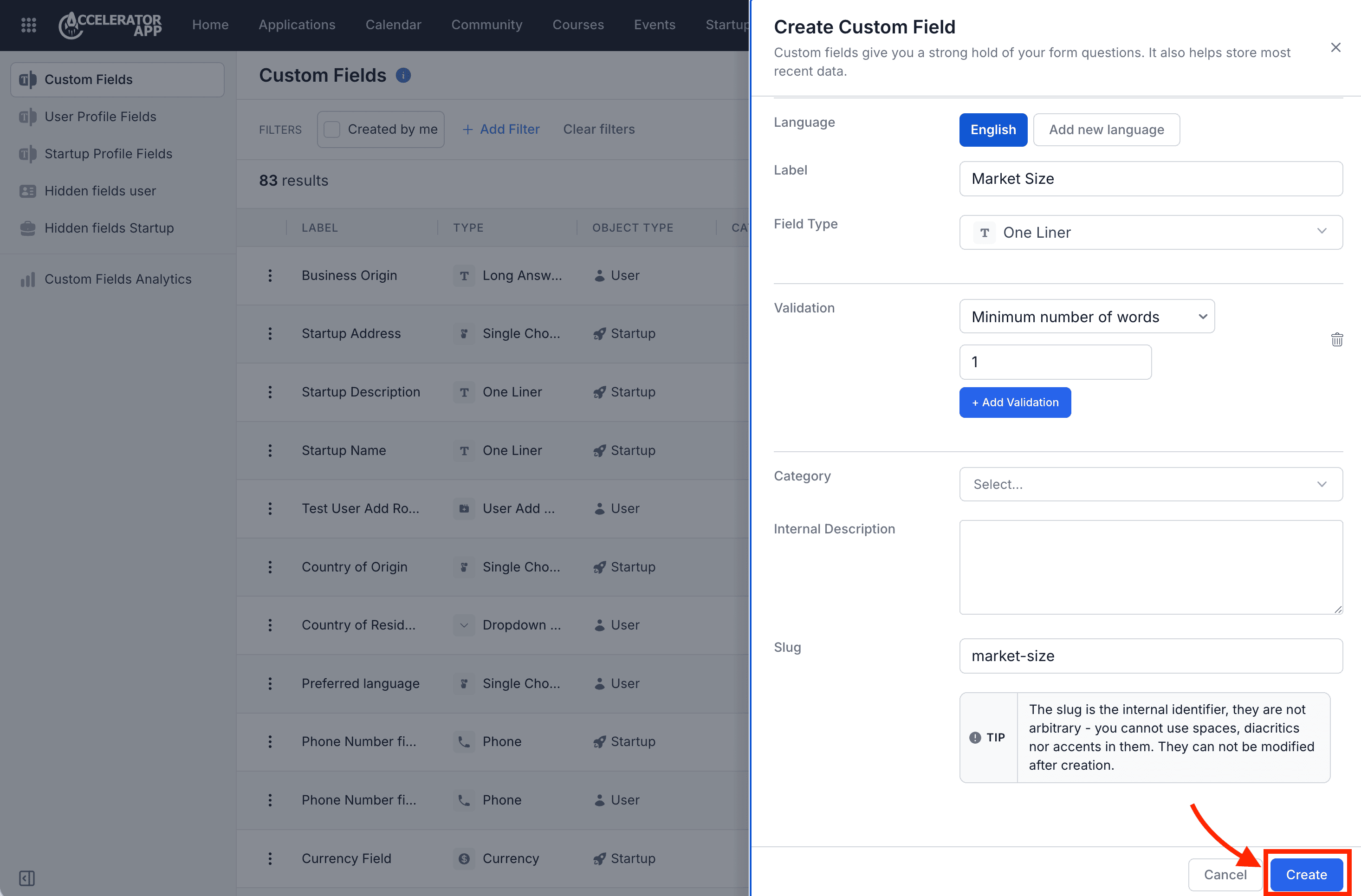
7. Finalize details and create
Fill in the last details such as Category, Internal Description and Slug. Once you're done, press the blue Create button on the bottom right of the panel.
8. Edit a custom field
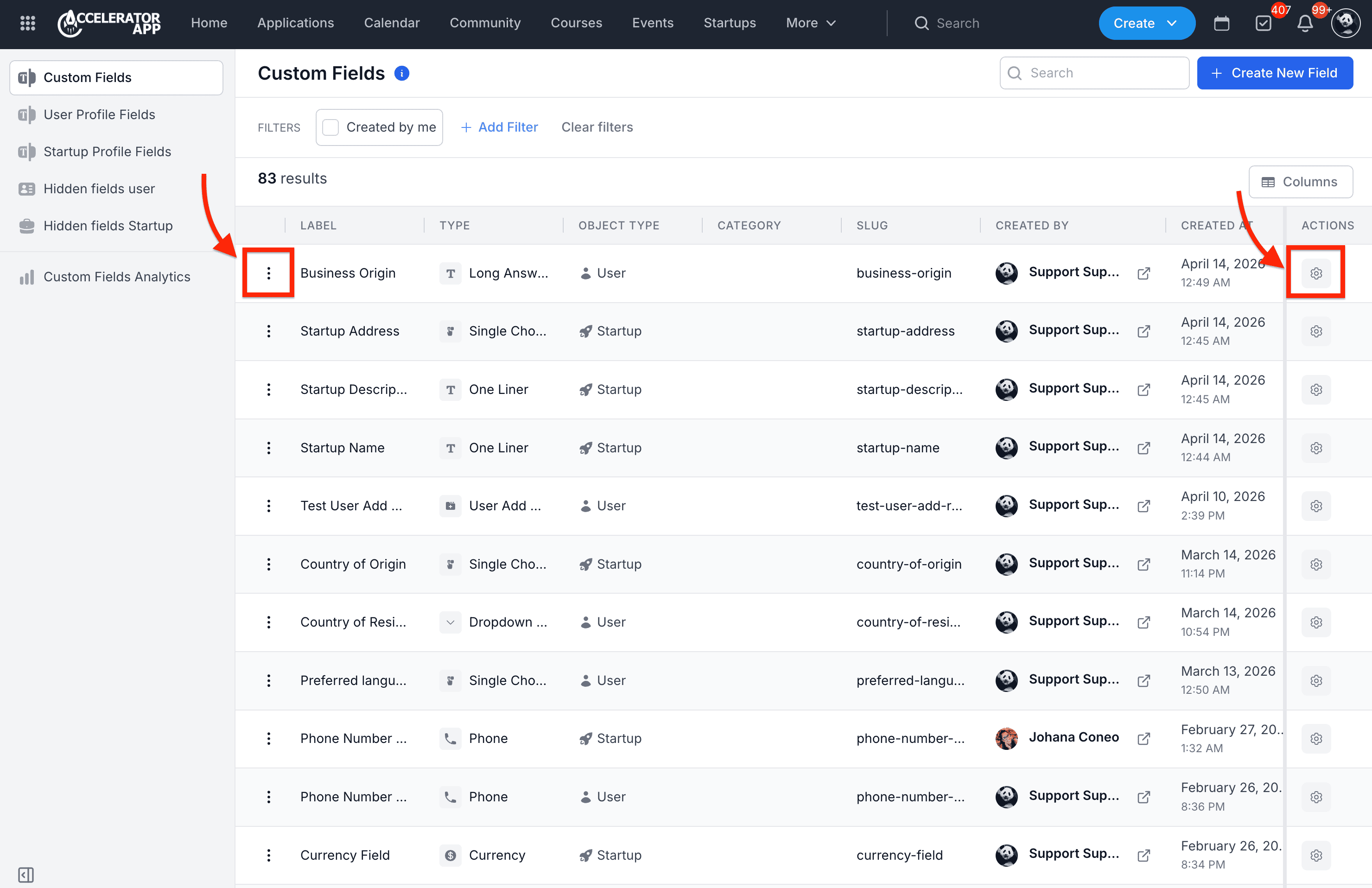
From the Custom Fields page, locate the field you want to modify. You can edit it by clicking either the three-dot menu on the left or the gear icon in the 'Actions' column on the right.
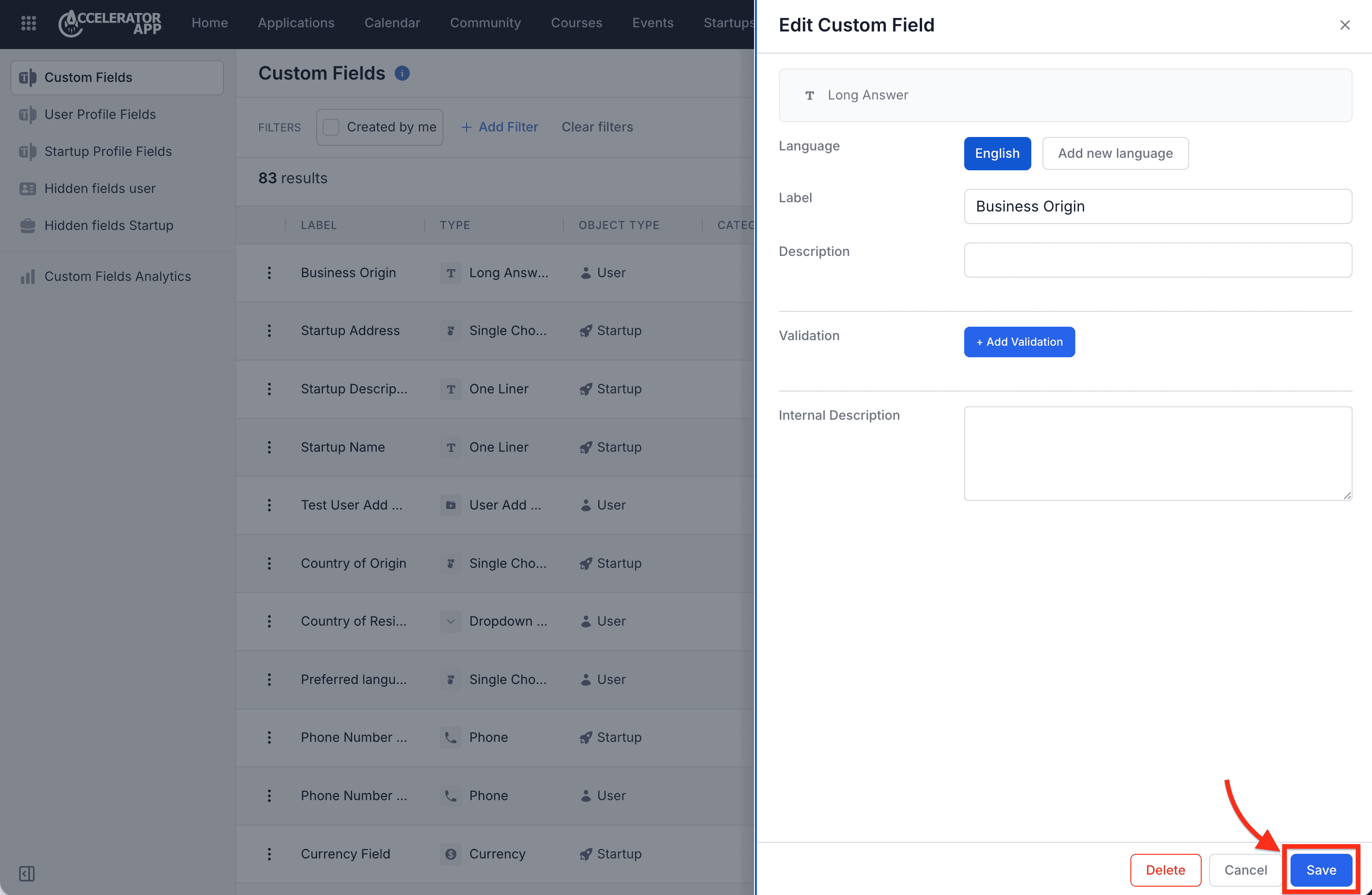
The Edit Custom Field panel will appear. Apply your changes, then click the blue Save button in the bottom-right corner to finish.
Best Practices
- Create Custom Fields under the correct Object Type so they appear in the right place.
- Use clear and consistent field names to make your setup easier to manage over time.
- Reuse Custom Fields when possible so users do not need to answer the same question more than once.
- Review your User Profile Fields and Startup Profile Fields after creating new fields to make sure they appear where expected.