


How to Use Bulk Actions
Bulk actions allow you to manage large numbers of applications efficiently, saving time and ensuring consistency when handling repetitive tasks. From a single view, you can apply actions to multiple applicants at once instead of updating them individually.
Usability
-This feature is particularly valuable in scenarios such as: -Reviewing and progressing large volumes of applications -Accepting or rejecting multiple applicants at the same stage -Adding or removing tags across a group of candidates -Sending emails to selected applicants -Assigning or unassigning evaluators in bulk -Bulk actions help streamline decision-making while reducing manual effort and the risk of errors.
Where to Find It
Bulk actions are available on the Applications Overview page. They work based on the filters applied, so only the applications currently visible (and matching your filters) can be selected and processed.
Step-by-Step Actions
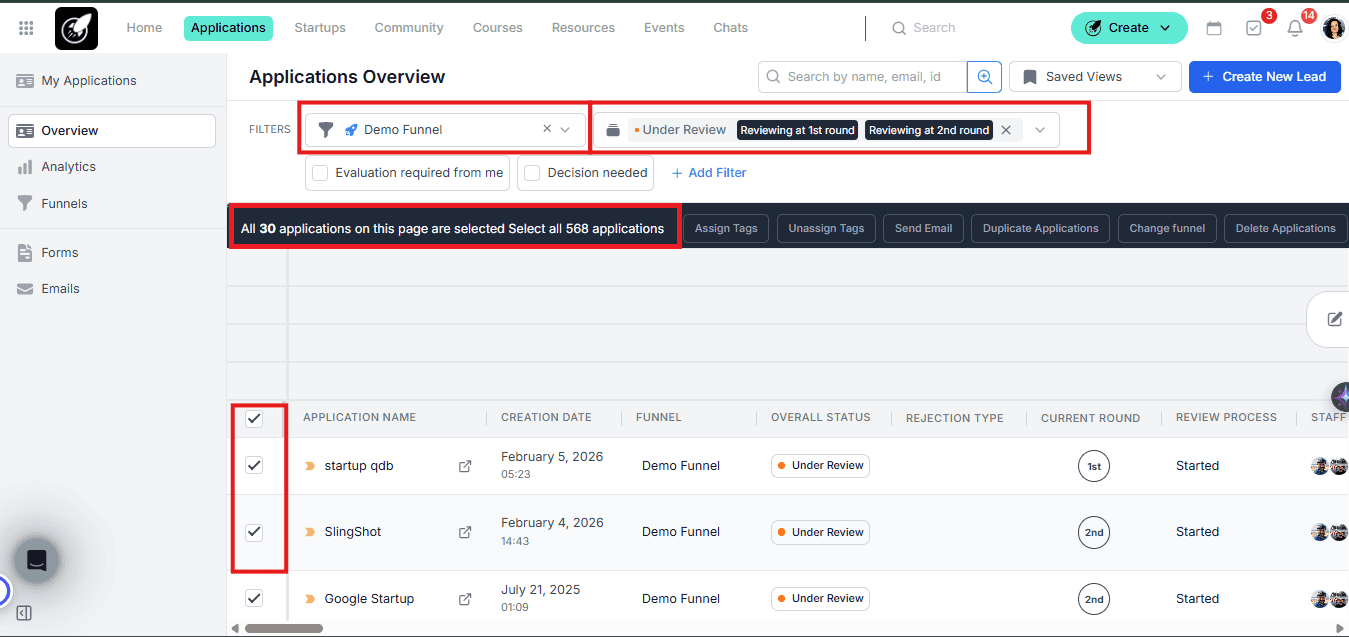
**1. Select a Funnel and Status **To ensure accurate bulk processing, start by being specific: Choose a funnel from the dropdown in the top-left corner. Select a single status (for example, Application Submitted).
⚠️ If you choose Under Review, you must also select the specific round you want to act on.
**2. Select Applicants **Use the checkboxes on the left side of the table to select applicants: Select individual applicants
Use the top checkbox to select all visible applicants
Once selected, the available bulk actions will appear at the top of the table.
As you scroll, additional rows are loaded in batches of 30. Each time you select all rows using the top checkbox, you can choose between: Selecting only the currently visible applications, or
Selecting all applications in the funnel
Sorting Applicants
Sorting helps you make more informed bulk decisions. After selecting a funnel, you can add funnel-specific attributes—such as application answers or evaluator scores—as table columns. Click the Columns selector in the top-right corner.
Choose which columns you want to display.
Click on a column header to sort results in ascending or descending order.
Tips & Best Practices
-Always double-check the funnel, status, and round before applying bulk actions -Use sorting and filters to narrow down applicants before selecting all -Start with a smaller selection if you’re performing a critical action (such as rejection) -Combine tags and sorting to organize applicants for faster reviews later -Using bulk actions thoughtfully ensures faster processing while maintaining accuracy and control over your application workflow.