


Introduction to How to Add and Manage Professional Experiences
The Professional Experience section of your profile allows you to showcase your career history, expertise, and current roles within the ecosystem. Maintaining an up-to-date profile is valuable for fostering connections, as it helps administrators, mentors, and other founders understand your background and areas of strength.
By detailing your past responsibilities and current positions, you improve the platform's ability to provide tailored recommendations and networking opportunities.
Where to Find Professional Experiences
To manage your work history, you must first navigate to your personal profile. Click on the Account section in the left-hand sidebar menu, then select Profile. Scroll to the bottom of your profile page to find the Professional Experience section.
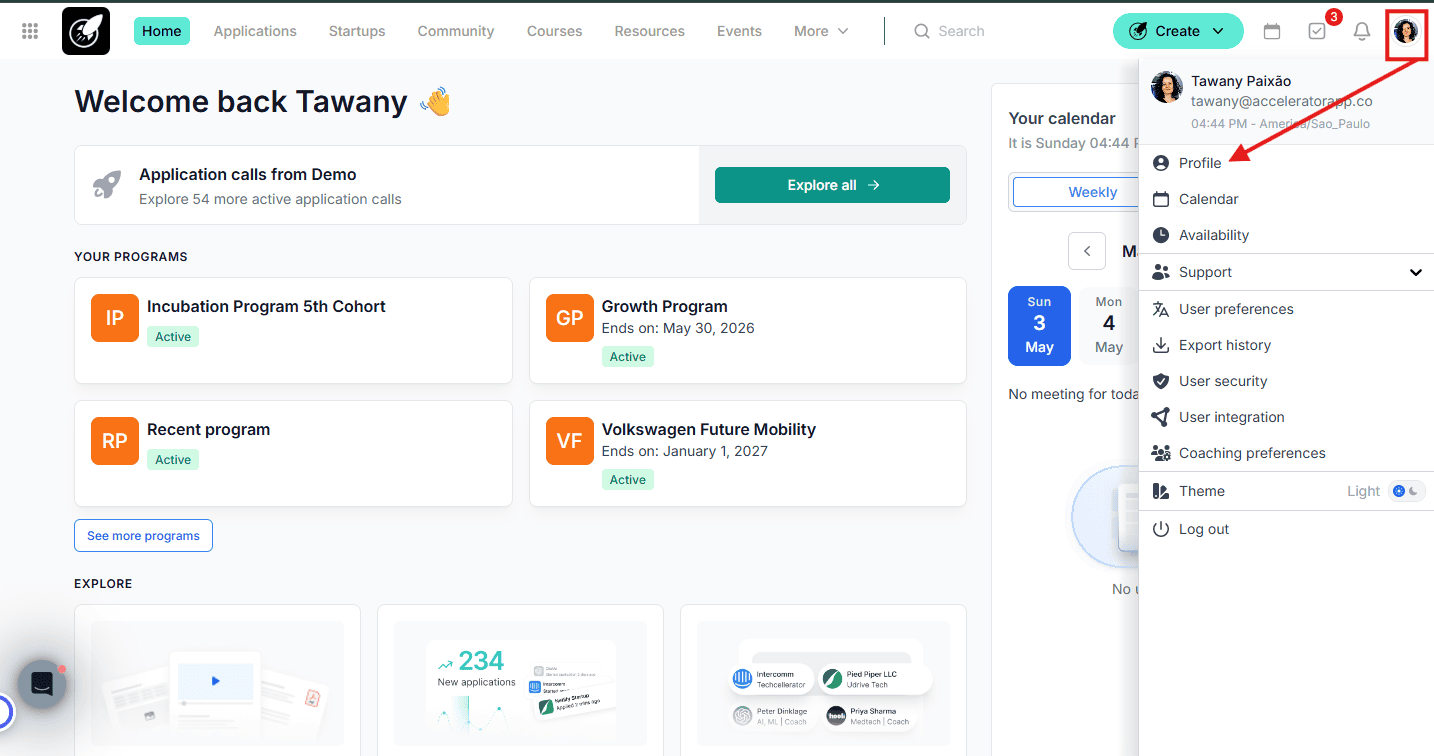
Step-by-Step
1. Accessing the Experience Editor
- Navigate to your Profile page via the Account menu.
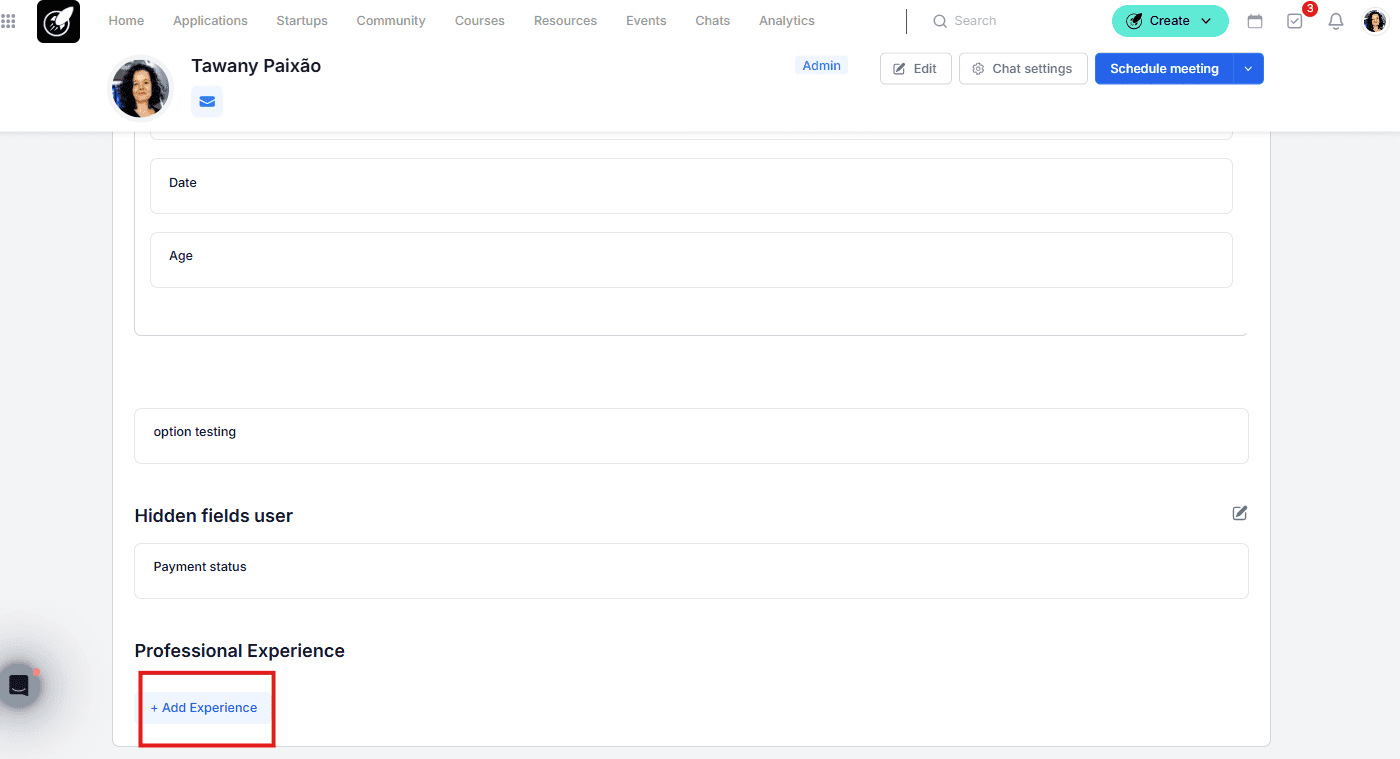
- Scroll to the bottom of the page to locate the professional experience area.
- Click the + Add Experience button to create a new entry.
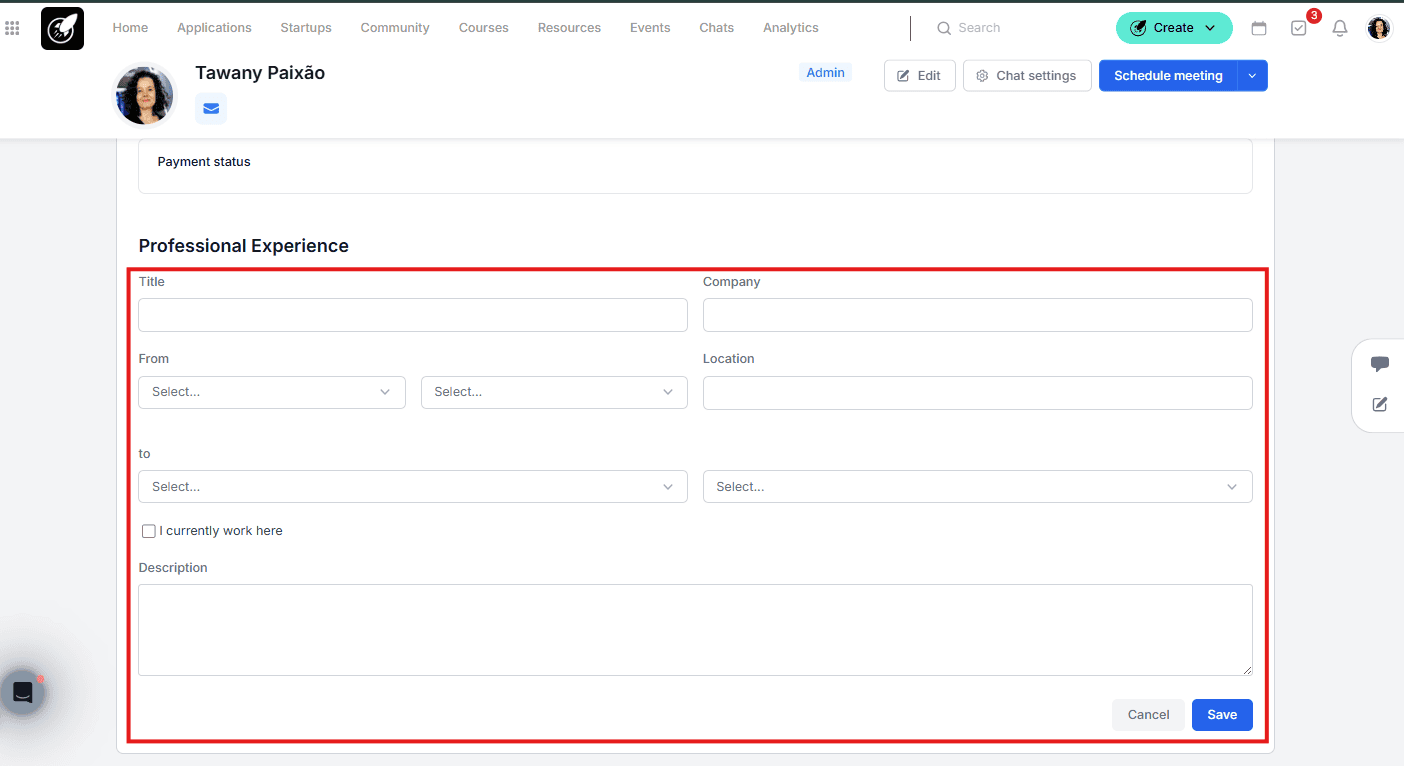
2. Filling in Position Details
- Enter the Title of your position and the Company Name.
- Add the Location and your Start Date.
- Current Roles: If you are still in this role, check the box "I currently work here"; this will automatically remove the end date requirement.
- Provide a Description of your key responsibilities and achievements to give others more context.
3. Saving the Information
- Once all fields are completed, click the blue Save button to publish the experience to your profile.
- If you need to discard your changes, click the grey Cancel button.
4. Editing an Existing Experience
- Scroll to the specific experience you wish to change on your profile page.
- Click directly on the experience entry to re-open the editor.
- Modify the fields (Title, Company, Dates, or Description) as needed and click Save.
5. Deleting an Experience
- Open the editor by clicking on the experience you wish to remove.
- Click the red Delete button at the bottom of the modal.
- Confirm the deletion to permanently remove the entry from your profile.
Best Practices
- Keep it Concise: Use bullet points in the description field to make your responsibilities easy for others to scan.
- Update Regularly: Ensure your "Current Role" is accurate, as this is often used for mentor matching and networking filters.
- Highlight Impact: Focus on results and specific skills used in your previous roles to make your profile stand out to potential collaborators.