


How to Add Co-Founders to Your Startup
Adding co-founders to your startup allows them to manage your startup profile alongside you in AcceleratorApp. Co-founders will have the same access level as you — there is no difference between your permissions and theirs.
Where to Find the Co-Founder Section
Navigate to the Startup tab in the top navigation bar.
- On mobile — tap View Details to open the startup options.
- On desktop — locate the Co-founders section in the right-hand column and click the pencil icon to edit.
Step-by-Step
1. Open the Co-Founders Editor
Click the pencil icon next to the Co-founders section. You will see the current list of co-founders and an Add Co-founder button.
2. Add a Co-Founder
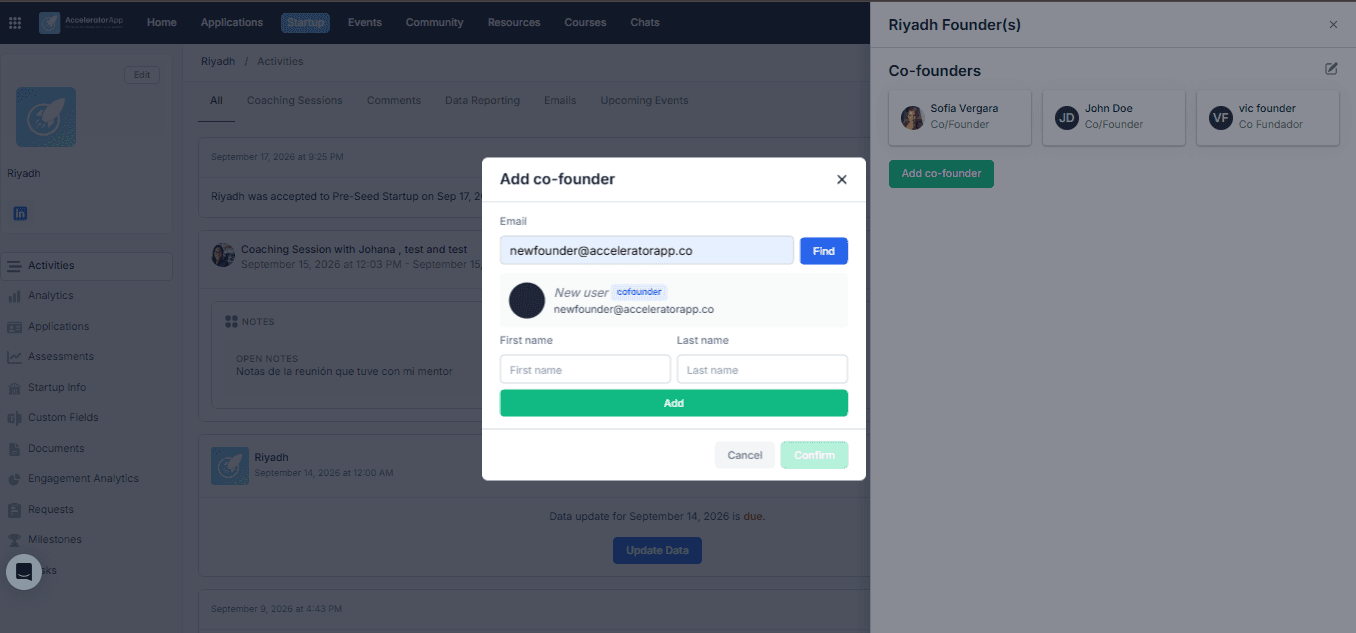
Click Add Co-founder. A pop-up will appear asking for the email address of the person you want to add.
Three scenarios can happen:
- The email belongs to someone already on the platform with a Co-Founder account — their name will appear in the pop-up. Click Add to link them to your startup. No invitation email is sent.
- The email belongs to someone on the platform with a different user type — you will see the error message "This user is not available to add as a co-founder." In this case, contact your program administrator to resolve the account type conflict.
- The email is not registered on the platform — you will be prompted to enter the person's first name and last name. Click Add to proceed. They will receive an email invitation to create their account and will be automatically linked to your startup once they sign up.
3. Add Multiple Co-Founders
After clicking Add, you will be asked if you want to add another co-founder. Repeat the process for each additional person.
Best Practices
- Double-check the email address before submitting. An incorrect email will either match the wrong user or fail to send an invitation to the right person.
- If you see the "not available" error, contact your admin early. Resolving a user type conflict requires admin action — the sooner you flag it, the sooner your co-founder gets access.
- Only one person needs to send the invitation. Once a co-founder is added, they will have full access to the startup profile — no need for multiple invitations.