


Introduction to Evaluating Applicants
If you have been assigned as an evaluator, AcceleratorApp allows you to access each candidate’s application file and complete the evaluation form directly in the platform.
You can reach applications that require your review in two main ways: through your task list or through the Applications Overview table. Once inside the application file, you can start your evaluation, review the candidate’s application while you evaluate, and move on to the next application when you are done.
This helps evaluators review assigned candidates in a clear and organized way without leaving the platform.
Where to Find Applications to Evaluate
If you have been assigned to evaluate applicants, you can access the application file in two ways:
- from your Tasks
- from the Applications Overview table
Step-by-Step
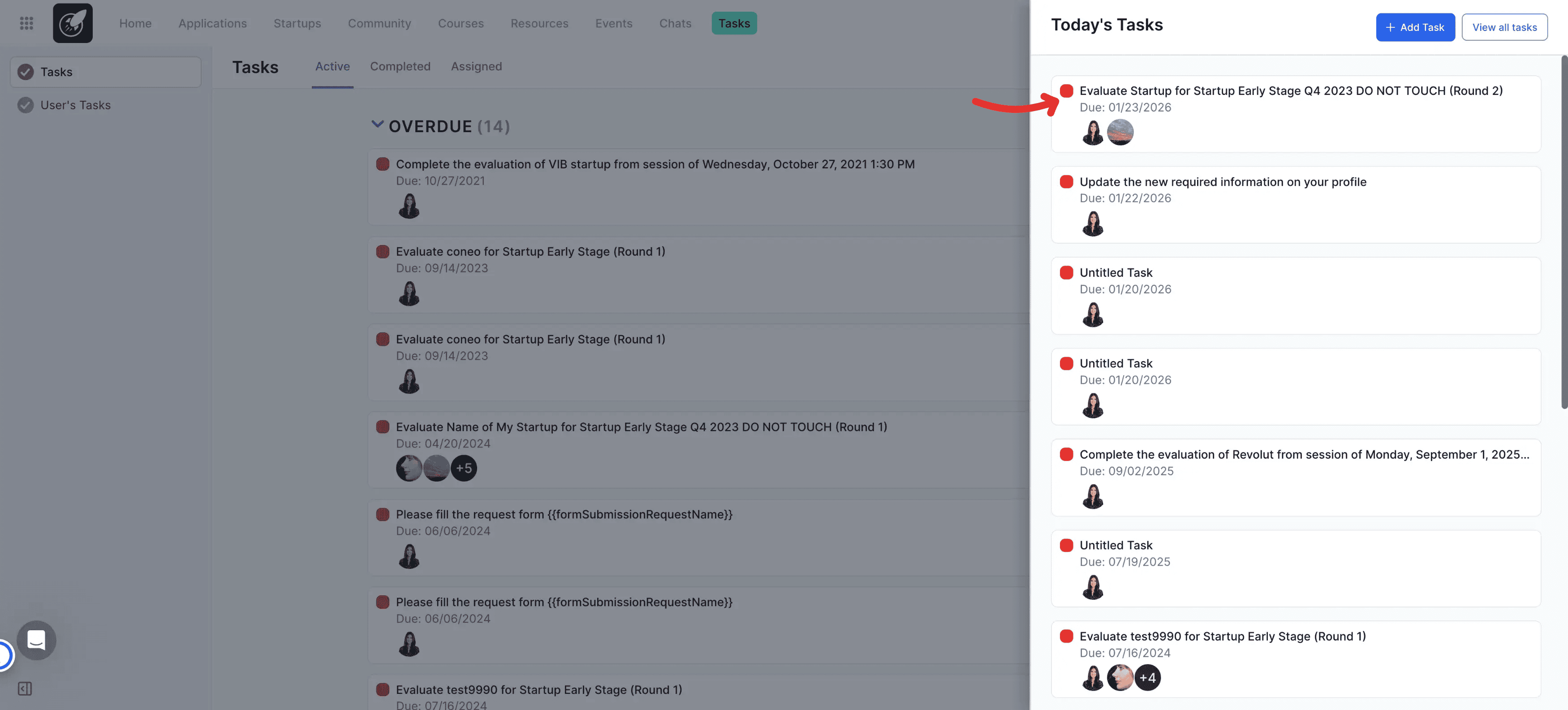
1. Open the application file from your tasks
If you have been assigned to evaluate a candidate, you will receive an automated task.
Click the task to open the candidate’s application file directly and begin your evaluation.
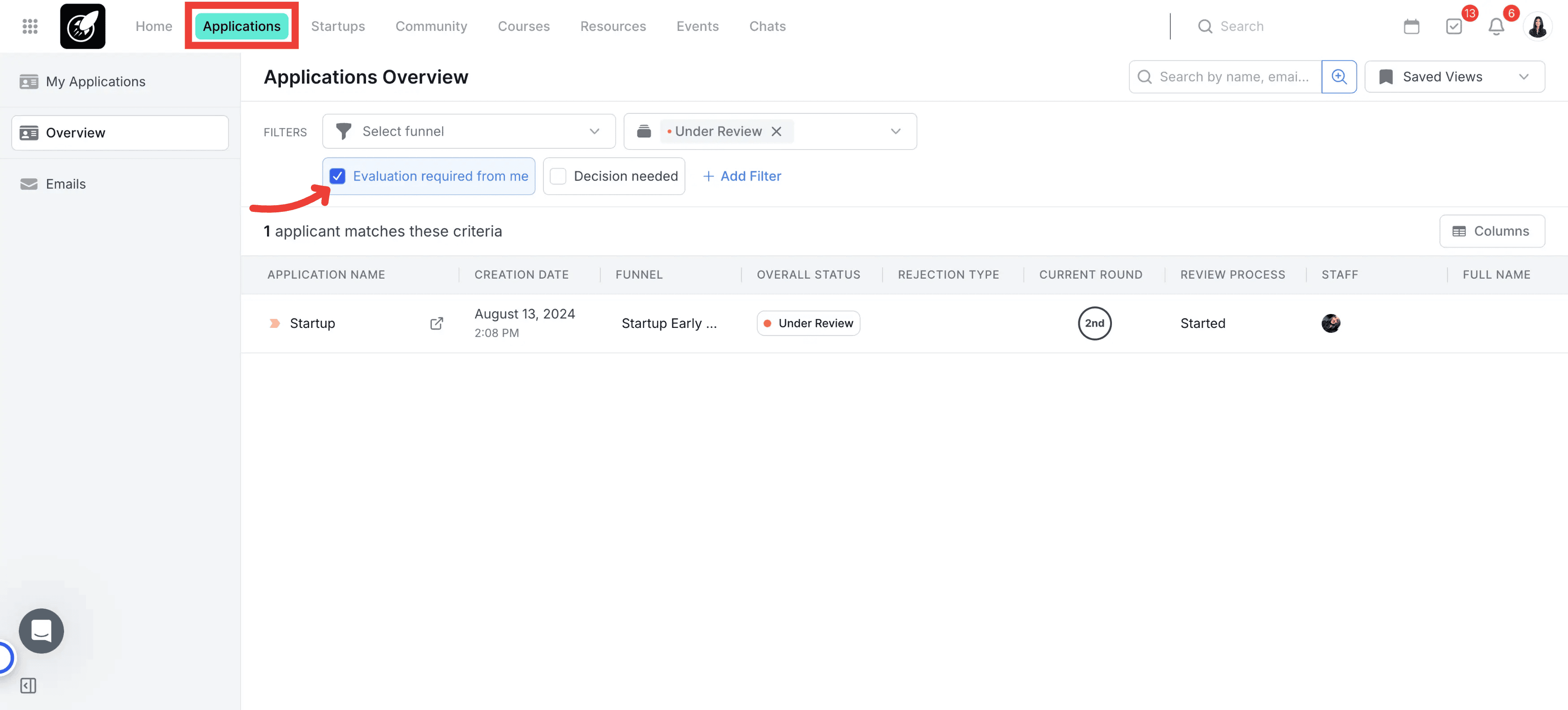
2. Or open the application file from the Applications Overview table
You can also go to the Applications Overview table from the Applications section.
From there, apply the relevant filters to identify the applications you need to evaluate. One useful option is the filter or toggle that helps display only the applications requiring your evaluation.
Once you find the correct application, click the application name to open the application file.
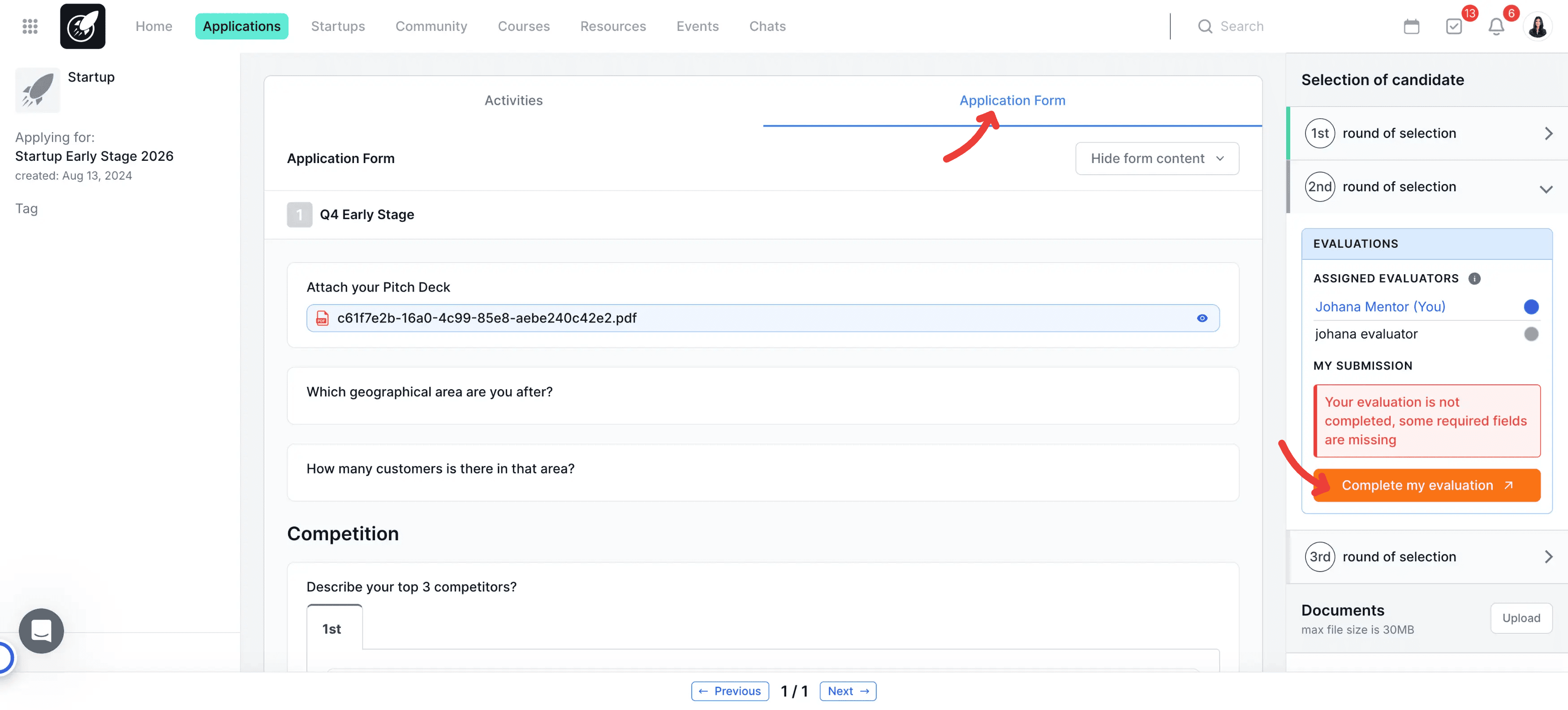
3. Start your evaluation
Inside the application file, look on the left side for the blue Start My Evaluation button.
Click it to open the evaluation form.
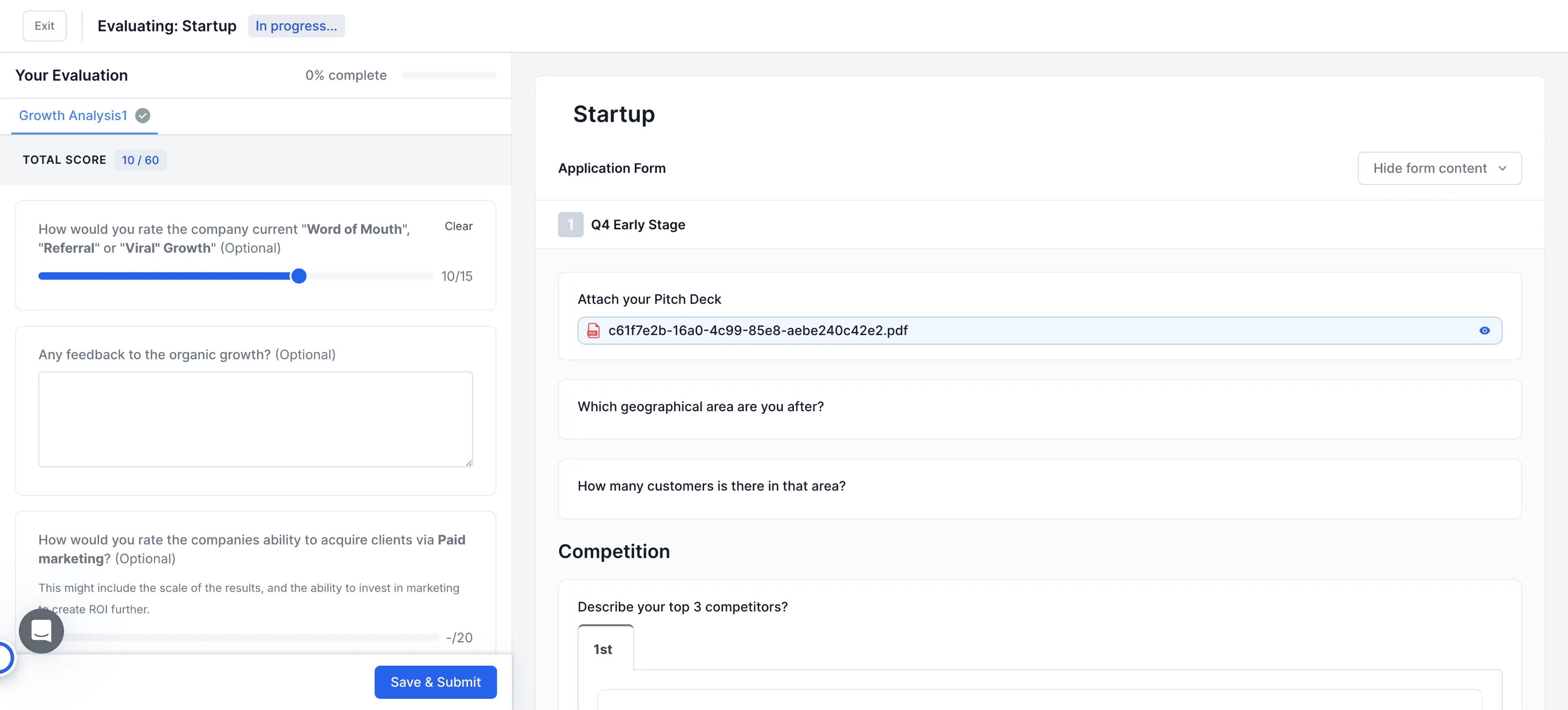
4. Complete the evaluation form
After opening the form, fill in the required evaluation fields.
You can expand or collapse the evaluation form while working.
5. Review the candidate’s application while evaluating
While completing your evaluation, you can still view the candidate’s submitted application by clicking the Application Form tab.
This allows you to review the original application details without leaving the evaluation page.
6. Move to the next application or modify your evaluation
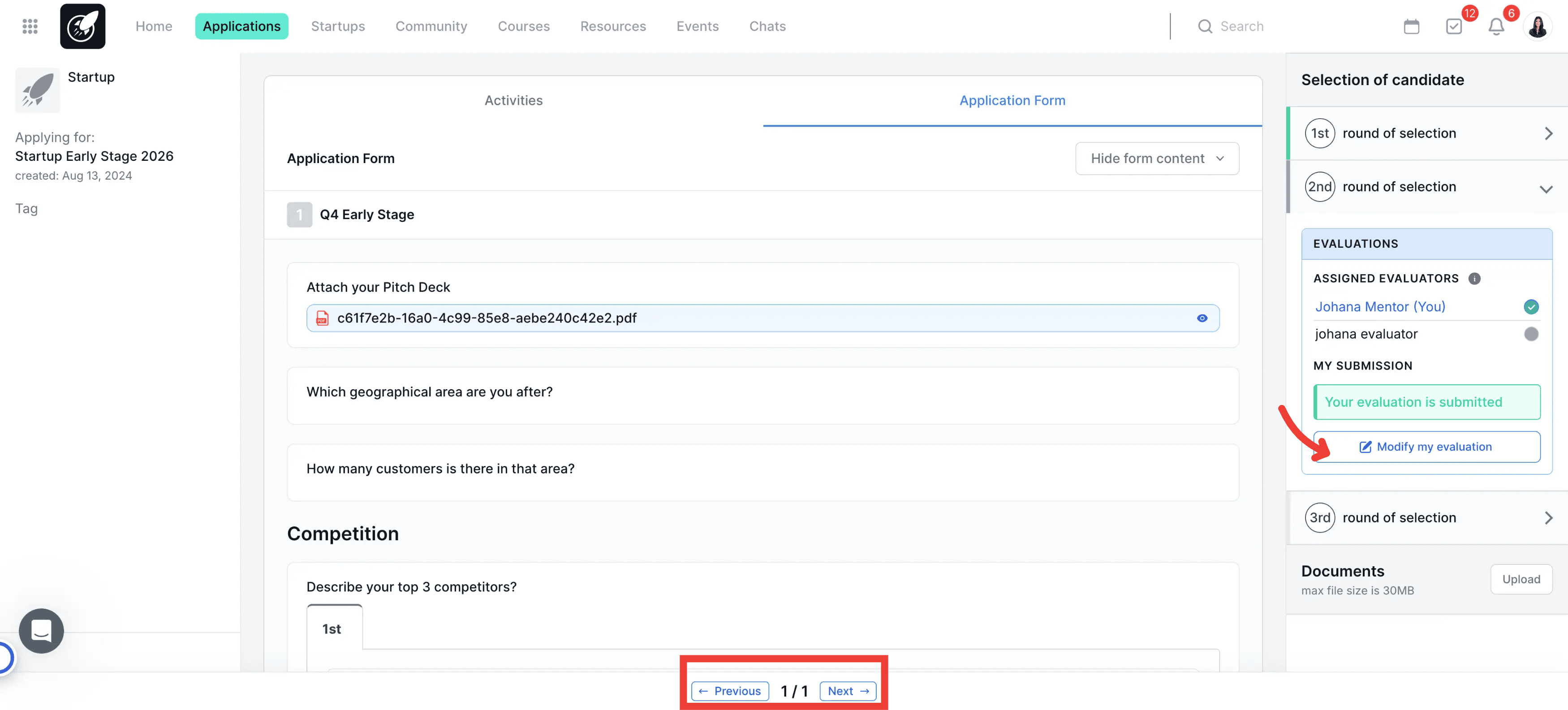
Once your evaluation is complete, you can move to the next candidate by clicking Next at the bottom of the page.
The system will take you to the next application based on the filters applied in the Applications Overview table.
If you need to update your evaluation later, click Modify My Evaluation.
Tips & Best Practices
- Use filters in the Applications Overview table to narrow down the list of applications that require your review.
- Review the Application Form tab while evaluating so you can compare your answers against the candidate’s submitted information.
- Double-check your evaluation before moving to the next application.