


Introduction to your User Profile
Your User Profile serves as your professional identity within the AcceleratorApp ecosystem. It is more than just a contact card; it is a dynamic tool that helps administrators, mentors, and fellow founders understand your background, skills, and demographic context.
Maintaining a complete profile is valuable because it powers the Community Search and Mentor Matching algorithms, ensuring you are connected with the right opportunities and people. Whether you are an applicant showcasing your potential or a mentor highlighting your expertise, a well-crafted profile fosters better collaboration and transparency.
Where to Find Your Profile
To access your profile settings, click on the Account section in the left-side navigation menu, then select Profile. This will take you to your personal profile page where all components can be viewed and edited.
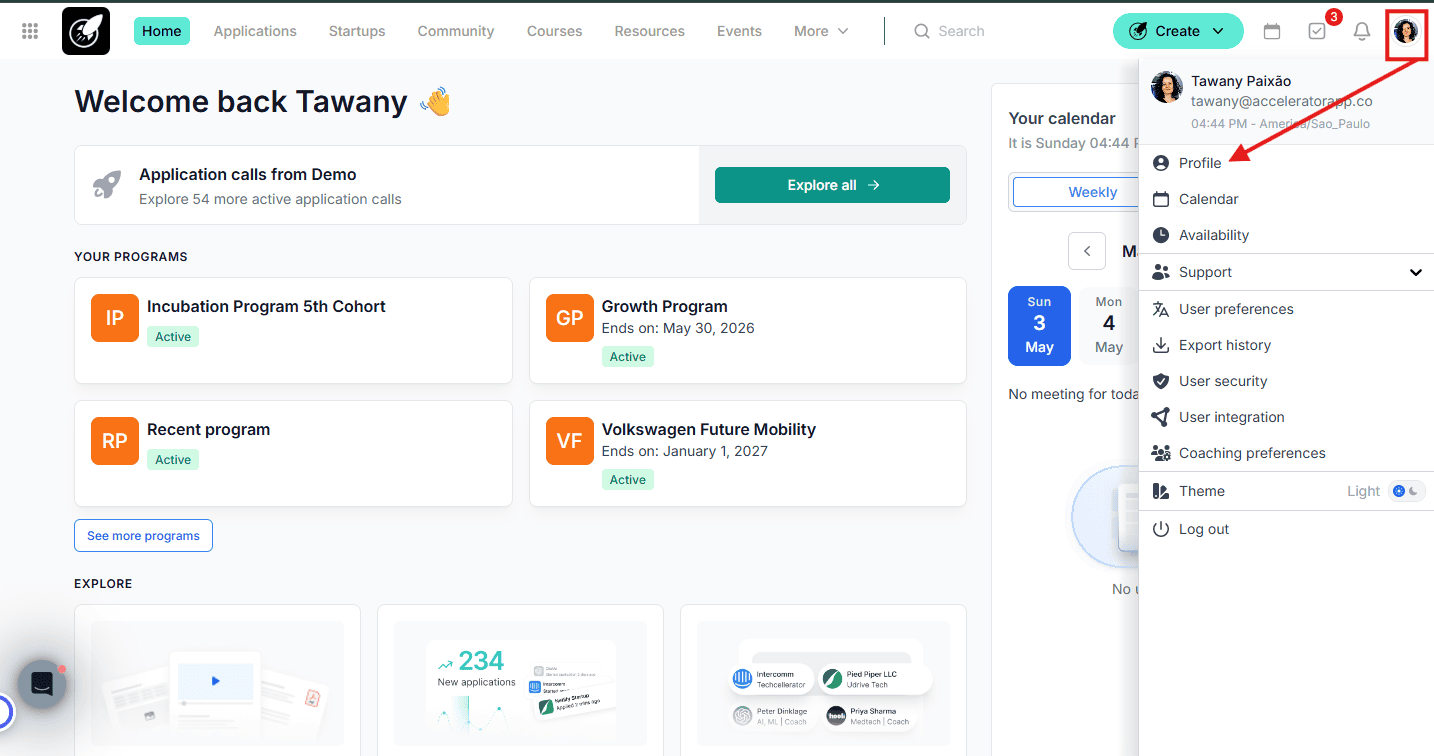
Step-by-Step
1. Update Your Core Information
- Locate the top section containing your name, picture, and contact details.
- Click the Edit (pencil) icon to open the editor.
- Personalize: Update your name, a short bio ("a sentence about you"), and shared contact info.
- Images: Click on the profile picture or background cover image to upload new files. You can crop and adjust the orientation directly within the platform.
- Click the blue Save button to apply changes or Cancel to discard.
2. Add and Manage Skills
- Scroll to the Skills section.
- Depending on the admin settings, you’ll be able to either add skills freely or select them from a predefined list.
- Add relevant keywords that describe your expertise (e.g., "SaaS," "Python," "Financial Modeling").
- Outcome: These skills make you discoverable in the Search Community page, allowing others to find you based on your specific strengths.
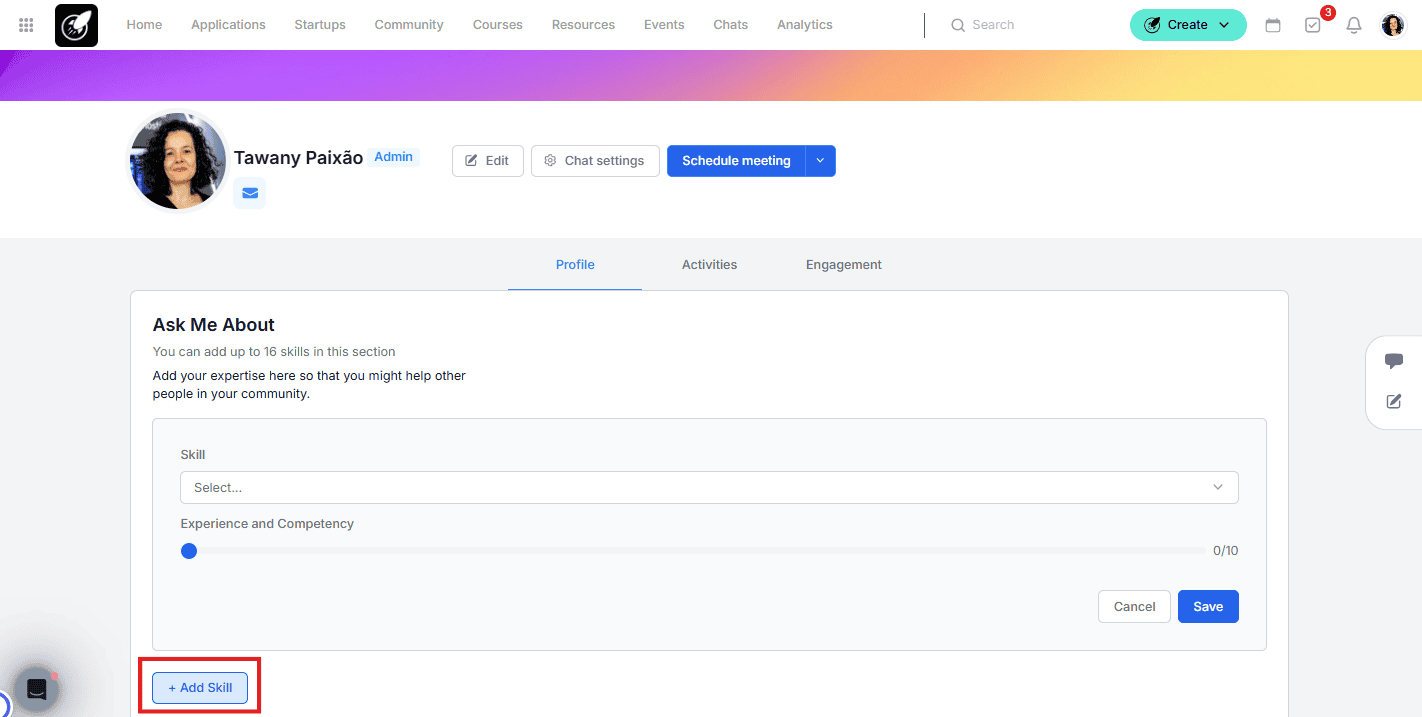
3. Complete the "About" Demographic Info
- Find the About section to provide basic demographic information.
- Click the Edit icon on the right side of the section.
- Select the appropriate options for each field.
- Note: Providing this data helps the organization improve its program diversity and support, but you may select "Prefer not to say" for any field you wish to keep private.
4. Document Your Professional Experiences
- Navigate to the Professional Experiences section at the bottom.
- This section provides a timeline of your career, helping coaches and mentors understand your professional journey and how you acquired your skills.
- Click the + Add Experience button to input your history or click an existing entry to modify it.
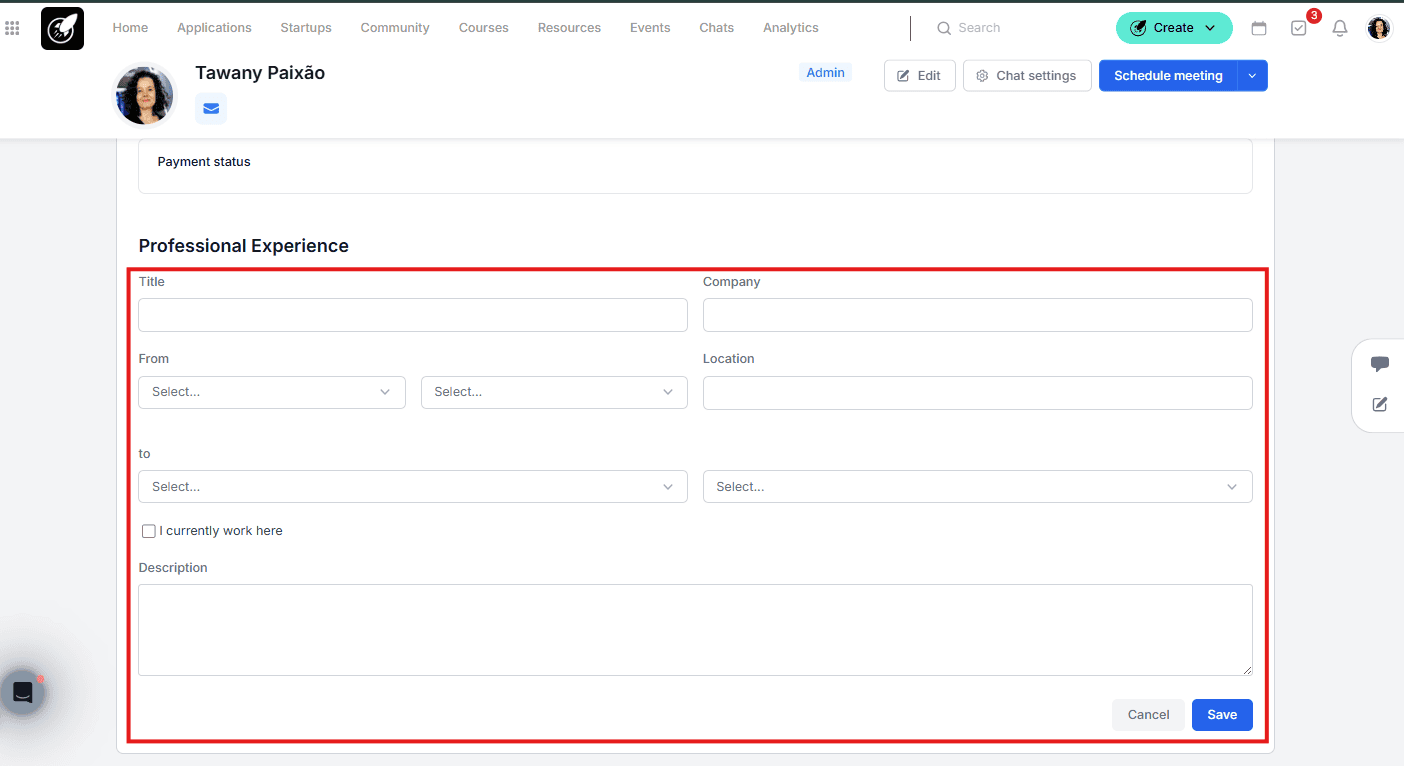
Best Practices
- First Impressions Matter: Use a clear, professional headshot and a high-quality cover image to make your profile stand out in the community directory.
- Be Specific with Skills: Use standard industry terms for your skills to ensure you show up in relevant search results.
- Keep Bio's Concise: Your "About Me" sentence should be a high-level "elevator pitch" of who you are and what you're working on.
- Review Privacy: Only include contact information you are comfortable sharing with the broader community within your incubator or accelerator.