


How to Reschedule or Cancel an Interview Meeting
When you are assigned as an interviewer in an application process, you are notified by email (if Digest email is on) and by an in-platform notification (depending on the admin settings). Interview meetings are booked by the applicant, so rescheduling works a little differently from other meetings: instead of choosing a new time yourself, you ask the applicant to choose one.
Your access to the Application File and its actions depends on the permissions configured for your user role by your program administrator. If you do not see the options described below, contact your admin.
Where to Find the Interview Meeting
Click Applications in the top navigation menu and select Overview, then click on the applicant's name to open their Application File. When the applicant is in the round that includes the meeting with you, the meeting details appear in the right-hand panel.
Step-by-Step
1. Open the Application File
From the Application Overview, open the Application File of the applicant you are interviewing. The meeting section shows the date, time, and the action buttons.
2. Know Your Main Actions
In the meeting section you will see two main buttons:
- Start Meeting — opens the meeting when the interview begins.
- No Show — records that the applicant did not attend.
3. Reschedule the Meeting
Next to the meeting date, click the pencil icon and select Reschedule.
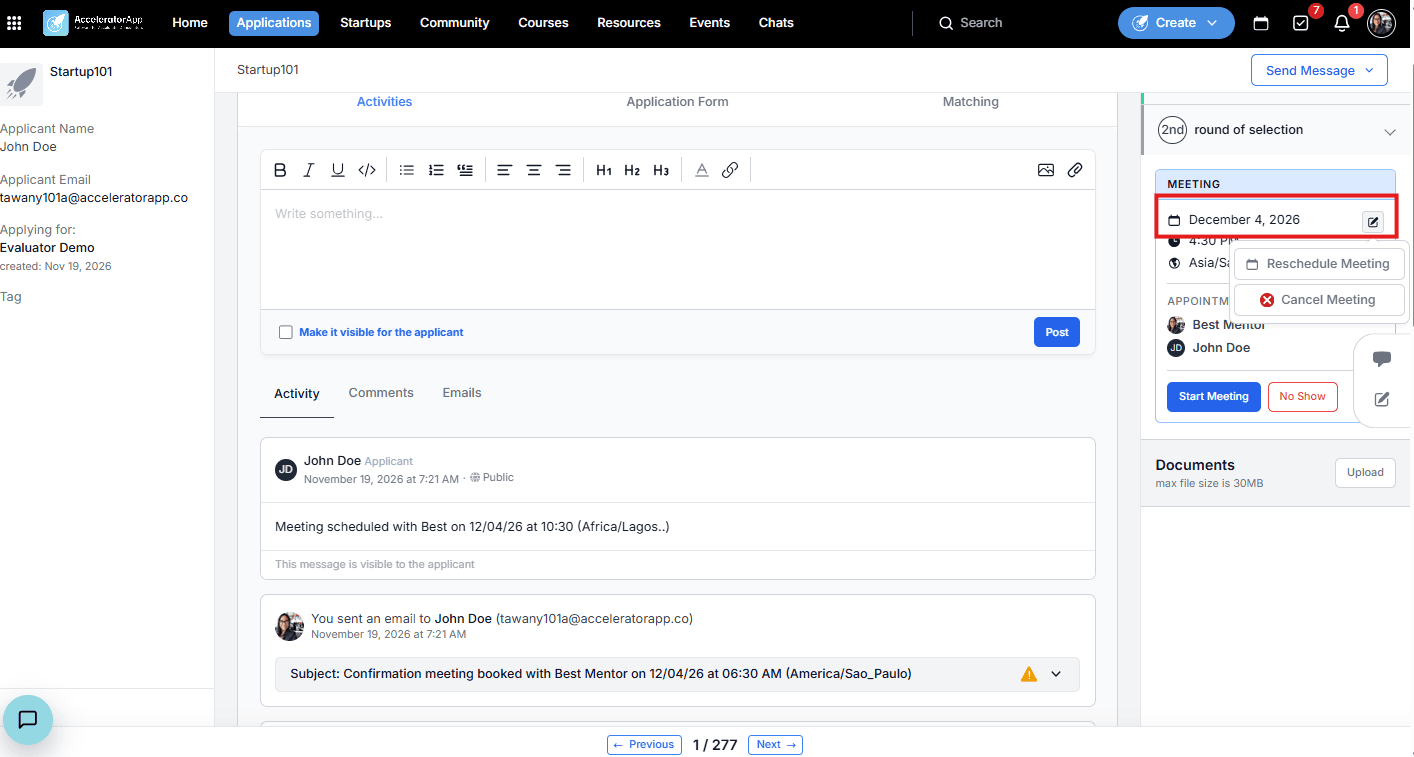
Because the applicant is the one who books the meeting, rescheduling does not let you pick a new time directly. Instead, the platform automatically sends the applicant an email saying that the meeting has to be rescheduled, with a button to select a new time slot.
The applicant then books a new time based on the availability set in your calendar.
4. Cancel the Meeting
Next to the meeting date, click the pencil icon and select Cancel meeting. The platform automatically sends the applicant an email saying that the meeting has been canceled.
Best Practices
- Keep your availability up to date. The applicant chooses a new slot from your availability, so make sure your calendar and availability reflect the times you can actually meet.
- Reschedule as early as possible. The applicant needs time to choose a new slot, so acting early keeps the process moving.
- Use No Show only when the applicant did not attend. If you need to move the meeting, use Reschedule instead, so the applicant gets a chance to book again.
- Coordinate with your admin if the meeting needs to move urgently. Since the applicant controls the booking, your program administrator can help when time is short.
Additional Resources
- How to Conduct an Interview and Submit Your Evaluation
- Managing Your Availability
- How to Link Your Calendar